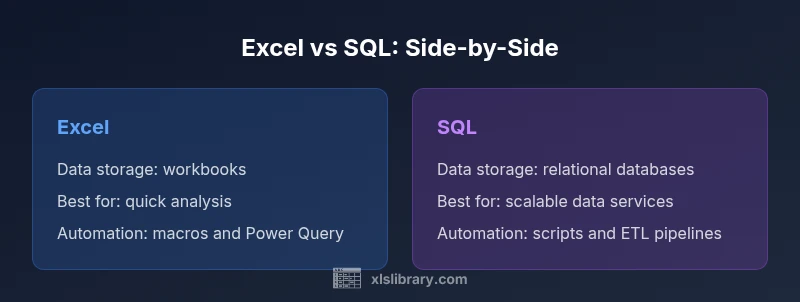
Difference Between Excel and SQL: A Practical Guide
Compare Excel and SQL to decide where to start: quick analysis in spreadsheets or scalable database work. Learn data models, governance, and practical hybrid workflows for real-world data tasks.


Excel is a spreadsheet tool used for ad-hoc analysis, calculation, and lightweight data tasks on a single file. SQL is a database query language designed for querying and managing relational data stored in a database server. In practice, choose Excel for quick analysis and prototyping, and SQL for scalable, centralized data operations.
Data at a glance: Excel vs SQL
The difference between Excel and SQL is foundational to how teams approach data problems. Excel is a desktop-first spreadsheet tool that excels at quick calculations, what-if analyses, and presenting data in a visually digestible form. SQL (Structured Query Language) is a language used to query, modify, and manage data stored in relational databases. It enables precise retrieval across large datasets, supports complex joins, and enforces data structures. For teams starting from scratch, the key is to recognize when speed and flexibility in a local workbook are enough, and when centralized data management via SQL becomes necessary. According to XLS Library, Excel shines for prototyping and fast experimentation, while SQL provides scalability and governance for production-grade data tasks.
- Primary use cases: exploratory analysis in Excel; scalable data operations in SQL.
- Typical environments: individual or small team workbooks vs centralized data warehouses.
- Collaboration implications: single-user workbooks versus multi-user database systems.
Data models and storage: Flat files vs relational databases
Excel stores data within workbooks organized as sheets. Each sheet behaves like a flat structure: rows and columns with cells that can hold numbers, text, dates, or formulas. There is no enforced schema in the same way as a database, which means data integrity is often maintained through manual practices, data validation, and disciplined governance by the user. SQL-backed data lives in relational databases that enforce schemas, constraints, and relationships among tables. Tables can be linked via keys, and normalization rules reduce redundancy. This structural difference matters: Excel is comfortable for small, self-contained datasets, while SQL databases are designed for large-scale data integration, auditing, and concurrent access. From a practical standpoint, teams often migrate validated data from Excel into a database to enable broader access and more robust governance. For many organizations, this migration is a deliberate step in moving from prototype to production.
Core operations: Formulas and functions vs SQL queries
In Excel, data manipulation relies on formulas, functions, and built-in tools. You can perform range calculations, conditional logic, lookups, and pivoting to summarize data without writing code. In SQL, tasks are performed with queries: SELECT statements pull data, JOINs merge datasets, and GROUP BY aggregates. SQL supports set-based operations, transactions, stored procedures, and indexing to optimize performance. Each approach has its strengths: Excel provides immediate feedback and rich visualization for quick decisions; SQL enables repeatable, auditable data retrieval over large datasets. The learning curve differs: Excel formulas are often intuitive for non-programmers, while mastering SQL requires understanding relational theory and query planning.
Performance and scalability: Size limits and access patterns
Excel’s performance is tied to workbook size, available memory, and CPU power. Extremely large datasets can slow down workbooks, and operations like VBA automation may encounter memory constraints. SQL databases handle concurrency, indexing, and optimization for large volumes, making them better suited for multi-user environments and long-term growth. While Excel can connect to external databases (via Power Query or data connections), the heavy lifting for big data tasks typically occurs in SQL or a dedicated data platform. When scale becomes a priority, planning a data pipeline that moves data from Excel into a database can preserve the analyst’s workflow while ensuring governance at scale.
Data integrity and governance: Constraints, normalization, and auditing
Relational databases enforce data integrity through constraints (primary keys, foreign keys, checks, and unique constraints) and normalization principles that minimize redundancy. Data governance includes access controls, auditing, and change tracking, which are essential for compliance and reliability. Excel offers data validation, named ranges, and protection features, but it relies on users to maintain consistency across files. For organizations, the takeaway is clear: use Excel for experimentation and reporting on controlled, local datasets, then apply SQL databases with formal schemas and governance for shared, auditable data assets. The XLS Library analysis highlights that governance becomes more critical as data becomes centralized and shared across teams.
Learning curve and ecosystem: Resources and community support
Excel’s ecosystem is broad, with extensive formula libraries, templates, and visual tools. The learning curve is generally gentle for common tasks like SUM, VLOOKUP, and pivot tables, making it accessible to non-programmers. SQL has a steeper learning curve but offers a consistent paradigm across many databases (SELECT, JOIN, WHERE, GROUP BY). The core concepts translate across platforms, and there is a wealth of official documentation, online courses, and university-level material. The XLS Library team recommends starting with basic SQL SELECTs and a few joins, then expanding to indexing and optimization as data needs grow. Real-world practice often blends both worlds: Excel for analysis, SQL for data storage and retrieval.
Automation, integration, and connectors: Macros, Power Query, and database adapters
Excel can automate routine tasks with macros and Power Query, enabling repeatable data import and transformation. Power Query acts as a bridge to SQL databases, enabling you to pull, shape, and load data from a SQL source into Excel. Conversely, SQL environments rely on scripts, scheduled jobs, and ETL/ELT pipelines to update, transform, and distribute data. Understanding both sides helps teams design robust data workflows: use Excel for rapid prototyping and dashboards, and leverage SQL automation for reliability and scalability. The XLS Library analyses emphasize that a hybrid approach often yields the best balance between speed and governance.
Use-case patterns: When to choose Excel vs when to rely on SQL
Small, personal projects, dashboards for stakeholders, and quick what-if analyses are ideal for Excel. When datasets exceed workbook limits, require multi-user access, or must be integrated into a data warehouse, SQL shines. For teams implementing a data stack, a common pattern is to prototype in Excel, then extract and load refined data into SQL for reporting and analytics at scale. The decision should factor in data size, collaboration needs, governance requirements, and the need for audit trails. As a rule of thumb, treat Excel as a powerful front-end tool and SQL as the backbone for durable data storage and retrieval.
Migration and hybrid workflows: Moving from Excel to SQL and back again
Hybrid workflows are increasingly common. Analysts start with Excel for exploration, then publish clean datasets to a SQL database for broader access. Automated pipelines can refresh SQL data with the latest export from Excel or a shared source, preserving governance while maintaining analyst agility. Design considerations include data lineage, version control, and change management. A well-planned hybrid approach minimizes duplication, reduces errors, and aligns with organizational data governance policies. The objective is to unlock the strengths of both tools: the flexibility of Excel and the reliability of SQL.
Practical decision framework: A quick-start checklist to choose
To decide between Excel and SQL, ask: What is the data volume and concurrency requirement? Do I need formal governance and scalability? Can the team benefit from centralized access? If the answer leans toward quick analysis and presentation, start in Excel. If it points to shared data, reliability, and long-term maintenance, begin with SQL. A practical plan is to prototype in Excel, validate results, then implement a database-backed workflow for production tasks. This approach reduces risk and accelerates delivery.
Comparison
| Feature | Excel | SQL |
|---|---|---|
| Data model | Flat workbook structures with sheets | Relational tables with primary/foreign keys |
| Best use case | Ad-hoc analysis, prototyping, dashboards | Production analytics, reporting, and data warehousing |
| Learning curve | Low to moderate (formulas, charts) | Moderate to high (SQL syntax, optimization) |
| Performance & scale | Limited by workbook size and memory | Designed for large volumes and concurrency |
| Automation | Macros, formulas, and Power Query | SQL scripts, stored procedures, ETL jobs |
| Data integrity | Manual validation, basic data types | Enforced schemas, constraints, and normalization |
| Collaboration | Single-user or small teams with local files | Multi-user, centralized databases with access controls |
| Cost/licensing | Often bundled with office suites; low upfront cost for individuals | Database licenses and infrastructure costs |
Benefits
- Low upfront cost and quick start for small datasets
- Intuitive for non-technical users and strong visualization
- Excellent for prototyping, ad-hoc analysis, and what-if scenarios
- Direct integration with other Office apps and familiar UI
What's Bad
- Not scalable for very large datasets or multi-user environments
- prone to version control and data integrity challenges without governance
- Limited built-in multi-user collaboration and audit trails compared to databases
SQL is the stronger foundation for scalable, team-based data work; Excel excels at rapid analysis and visualization on smaller datasets.
If you prioritize scalability and governance, use SQL as the backbone. If you need fast insights and prototyping, start in Excel and plan a later migration to SQL as your data needs grow.
People Also Ask
What is the fundamental difference between Excel and SQL?
Excel is a spreadsheet tool for on‑device analysis and presentation, using cells and formulas. SQL is a query language for retrieving and transforming data stored in relational databases. The key distinction is local flexibility versus centralized data governance and scalability.
Excel is for on-device analysis, while SQL pulls data from centralized databases. The main difference is control and scalability.
Can Excel replace SQL for data warehousing?
No. Excel is not built for scalable, concurrent data storage or durable governance. SQL databases are designed to handle large datasets with proper indexing and transactional integrity.
Excel isn’t a substitute for a database when you need scalability and governance.
When should I use Power Query with Excel?
Power Query helps connect Excel to SQL databases and other sources, enabling repeatable data import and shape-and-load workflows. Use it when you need to pull data from external databases into Excel for analysis.
Use Power Query to bring SQL data into Excel for analysis.
What governance practices work well with both Excel and SQL?
Establish clear data lineage, version control for data exports, access controls for shared data, and documented data dictionaries. These practices help maintain integrity whether data lives in a workbook or a database.
Keep data lineage and version control, whether in Excel or SQL.
Is learning SQL difficult for Excel users?
SQL has a steeper learning curve, but foundational concepts resemble logical thinking used in Excel. Start with SELECT basics, then expand to joins and aggregations.
SQL is learnable for Excel users with structured practice.
What are good starting resources to learn both tools?
Begin with official documentation and beginner courses for SQL, complemented by practical Excel tutorials. Universities and reputable publishers offer structured paths that bridge both tools.
Official docs and courses are a great starting point for both.
The Essentials
- Choose SQL for centralized data and governance
- Use Excel for quick analysis and visualization
- Plan hybrid workflows to leverage both tools
- Invest in data literacy to maximize outcomes
- Prototype in Excel, then migrate to SQL for production