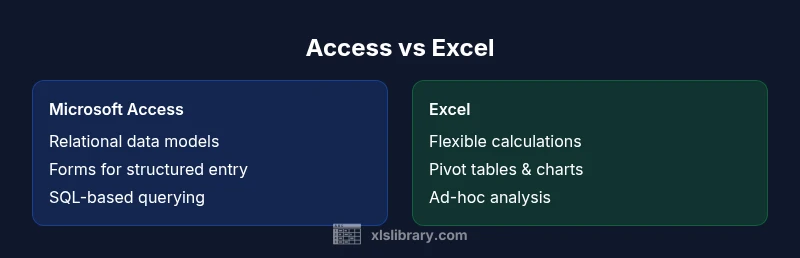
Microsoft Access vs Excel: A Practical Data Tool Comparison
Explore a practical, data-focused comparison of microsoft access vs excel. Learn where each tool shines, best-use scenarios, and actionable guidance for relational data and analysis.


Bottom line: In microsoft access vs excel, choose Access for structured relational data and multi-user workflows; choose Excel for flexible analysis, modeling, and dashboards. For most teams, start with Access when data integrity and forms matter, and switch to Excel for exploration and ad-hoc reporting. This guide helps you decide based on problem type and collaboration needs.
microsoft access vs excel: key differences
When evaluating microsoft access vs excel, the decision is not about which tool is universally better. It’s about how you model data, how teams collaborate, and what governance you need. Access acts as a relational database with built-in forms and queries, while Excel shines as a flexible grid for calculations and quick visualizations. The phrase microsoft access vs excel is commonly used to describe this fundamental trade-off: structured data management versus flexible analysis. According to XLS Library, clarity about the data problem you are solving is the first step toward a robust choice. This section frames the core differences you’ll weigh as you consider lifecycle needs—from data entry and validation to reporting and sharing.
Data modeling and relational capabilities
At the heart of the comparison between microsoft access vs excel is data modeling. Access is built around tables, relationships, and referential integrity. You can define primary keys, enforce data types, and create relationships that protect against orphaned records. Queries join data across tables, allowing you to enforce consistent rules and create multi-table views for forms and reports. Excel, by contrast, treats data largely as a flat grid. While you can simulate relational structures with structured tables and VLOOKUP/XLOOKUP, it’s harder to enforce referential integrity across sheets. For teams prioritizing robust data modeling within a familiar Microsoft ecosystem, Access offers clear advantages for long-lived datasets with multiple related tables.
User interfaces: forms, queries, and dashboards
The user experience matters in everyday data work. In the microsoft access vs excel decision, Access provides forms for guided data entry, built-in validation rules, and a query designer for extracting precise subsets of data. These features support consistent data capture and business workflows. Excel emphasizes dashboards, charts, and ad-hoc analysis. You can build interactive reports with slicers and pivot tables, but data entry is manual in the grid. If your users need structured inputs and routine data capture, Access forms and macros offer a smoother, controlled experience. If your focus is exploring data visually, Excel’s charts and conditional formatting deliver powerful, rapid insights.
Data entry, validation, and governance
Data governance is easier to implement in Access when you require disciplined entry, validation, and audit trails. Validation rules can be attached to fields, and forms can enforce business logic before data enters the table. In contrast, Excel relies on cell-level validation and manual processes that can lead to inconsistent data if not managed carefully. When choosing between microsoft access vs excel, the governance model matters: Access supports centralized, traceable data entry that’s suitable for small to medium teams with shared databases, while Excel requires careful version control and clear data-handling procedures to minimize drift. For structured data entry and reliable workflows, Access typically provides a stronger governance framework.
Analysis, formulas, and automation
Excel’s strength lies in calculation, modeling, and rapid analysis. Complex formulas, array calculations, and built-in functions enable powerful data exploration. In the microsoft access vs excel comparison, Excel acts as the analytical engine, particularly for scenarios that require forecasting, what-if analysis, and rich visualizations. Access offers SQL-based queries and data manipulation capabilities, but its analytical reach is narrower than Excel’s. For analysts who need to blend data sources and build dashboards, Excel is often the more capable environment. For database-focused reporting, Access reports can summarize data, but Excel remains the go-to tool for flexible calculation and visualization pipelines.
Collaboration, sharing, and deployment
Collaboration is a key constraint in theAccess vs Excel decision. Access databases can be shared with a small group under controlled conditions, but concurrent multi-user editing can introduce complexity if not planned properly. Excel supports shared workspaces and collaborative editing through cloud-enabled platforms, making it easier for larger teams to work simultaneously. If your goal is broad collaboration with simultaneous input from multiple users, Excel tends to be more scalable in modern office environments. For centralized data maintenance with form-driven input, Access remains effective for smaller teams that require strict data governance and a single source of truth.
Importing, exporting, and interoperability
Both tools offer avenues to move data in and out, but the flow differs. Importing from Excel into Access is common when projects require a structured relational layer over existing spreadsheets. Exporting Access data to Excel is also routine for analysis and sharing with stakeholders who prefer familiar spreadsheet interfaces. The microsoft access vs excel choice often hinges on how you’ll move data between transactional entry and analytical work. For ongoing interoperability, plan for a lightweight data integration path that preserves data types and relationships as you migrate between environments.
Performance considerations and scalability
Performance is a practical concern in the microsoft access vs excel debate. Access performs well for small to mid-sized datasets with moderate concurrency, provided you optimize relationships, indexing, and forms. Excel scales for data analysis and visualization but can slow down with very large datasets or heavy formula workbooks. Consider your data volume, the frequency of concurrent edits, and the need for quick refreshes when deciding. A blended workflow—storing core data in Access and performing heavy analysis in Excel—can offer a pragmatic balance between reliability and speed.
Security and permissions
Security models differ between the tools. Access typically relies on Windows authentication for local deployments and provides a more structured permission scheme through user-level access in shared environments. Excel files offer simpler protection through password masking and workbook-level permissions, which are easier to bypass or mismanage in collaborative contexts. If your data includes sensitive fields or requires strict access control, leaning toward Access with properly managed user permissions can reduce risk. For casual, ad-hoc sharing, Excel’s simplicity wins, but it comes with greater governance overhead to maintain security.
Migration strategies and hybrid workflows
Migration planning is central to choosing between the two tools. When data needs evolve from ad-hoc analysis to controlled data entry and reporting, moving from Excel to Access is a common path. Hybrid workflows—keeping a master data set in Access while feeding analysis-ready exports into Excel—are a practical pattern, leveraging the strengths of both platforms. Consider data cleansing steps, schema design, and interface requirements in your migration plan. Document the data model and ensure stakeholders agree on where data resides and how it flows between systems.
Practical decision framework: when to pick Access vs Excel
To simplify the decision, use this practical framework. If your project requires structured data entry, referential integrity, and controlled workflows with a small team, choose Access. If your priority is flexible analysis, rapid prototyping, and broad stakeholder collaboration, choose Excel. For many organizations, the best approach is a hybrid workflow: store authoritative data in Access and perform analytics in Excel, linking data where appropriate. The key is to align the data model with user needs and governance while keeping future scalability in mind.
Real-world use cases and industry patterns
Across industries, the Access vs Excel decision emerges in patient lists, inventory databases, school enrollment systems, and project tracking dashboards. Small clinics rely on Access to manage patient information and appointments with forms, while marketing teams use Excel to model campaign scenarios and forecast outcomes. In educational settings, Access powers lightweight administrative databases, while Excel handles gradebooks and analytics. By mapping the data problem to user tasks, teams choose the tool that minimizes friction and maximizes consistency. Using examples grounded in your domain helps stakeholders visualize how the split benefits your organization.
Comparison
| Feature | Microsoft Access | Excel |
|---|---|---|
| Data modeling and relationships | Relational tables with enforced referential integrity | Flat data in worksheets with optional links to other sheets |
| User interfaces | Forms, reports, and SQL queries | Spreadsheets, charts, and dashboards |
| Collaboration and sharing | Best for small, controlled multi-user environments | Strong for broad collaboration and cloud-based work |
| Automation and scripting | VBA/macros for forms and reports | VBA/macros in Excel for automation and data processing |
| Data entry and governance | Structured data entry with validation rules | Less rigid data entry; governance relies on discipline |
| Import/export and interoperability | Import from various data sources; export to Access formats | Excellent for data analysis exports and sharing in Excel |
| Analytics and calculations | SQL-based queries and reports | Advanced formulas, pivot tables, and visualizations |
| Security and permissions | Database-level security in shared environments | Workbook/worksheet protection with more limited controls |
| Deployment | Standalone or small networked databases | Cloud-enabled sheets and collaborative workbooks |
Benefits
- Strengthens data integrity with relational design
- Improves form-driven data capture for workflow consistency
- Integrates well with other Office tools for reporting
- Lends itself to lightweight, stand-alone databases without heavy IT
- Supports offline work with local databases
What's Bad
- Limited scalability for very large datasets
- More complex setup and maintenance than Excel
- Less flexibility for broad, ad-hoc analysis
- Concurrency can be tricky without proper planning
Choose Access for structured data with controlled workflows; choose Excel for flexible analysis and broad collaboration.
Access excels at data integrity and form-driven input for small teams; Excel dominates in analysis, visualization, and rapid prototyping. For many organizations, a hybrid approach yields the best balance.
People Also Ask
Can I use Access and Excel together in a workflow?
Yes. You can link Excel data into Access and export Access reports to Excel. Hybrid workflows are common when you need structured data entry plus flexible analysis. Plan data flows to minimize duplication and maintain data integrity.
Yes, you can link and exchange data between Access and Excel to leverage both strengths.
Which tool is better for multi-user databases?
Access supports multi-user environments with a centralized database and controlled forms. Excel supports simultaneous editing but is more prone to version conflicts without proper governance. For shared, structured data, Access is typically the better choice.
Access is usually better for multi-user databases, as long as you manage deployment well.
Can I import data from Excel into Access easily?
Yes, importing from Excel into Access is a routine operation. It’s common to start with a flat Excel dataset and then normalize it into related tables in Access for better governance.
Importing from Excel into Access is straightforward and helps you start with a clean relational model.
Is Excel sufficient for database-like needs?
For simple data tracking and lightweight analysis, Excel can be sufficient. If you need relationships, data integrity, and scalable data entry, Access offers a more robust foundation.
Excel can work for simple needs, but for robust databases, Access is usually better.
What about cloud or web versions of these tools?
Excel online supports real-time collaboration but with feature differences from desktop Excel. Access has limited cloud options; many teams deploy Access data locally or move to SQL-based solutions for web access. Consider your deployment goals when choosing.
Excel online allows collaboration; Access has limited cloud options.
The Essentials
- Prefer Access for relational data with forms and restricted editing
- Use Excel for modeling, calculations, and dashboards
- Plan a hybrid workflow: store data in Access, analyze in Excel
- Ensure governance and version control in multi-user environments
- Leverage interoperability to migrate data between tools when needed