Access vs Excel: A Practical Guide to Data Tools
Compare Access and Excel to decide when to use a relational database versus a spreadsheet. Learn data modeling, collaboration, automation, and migration tips for practical decision-making.


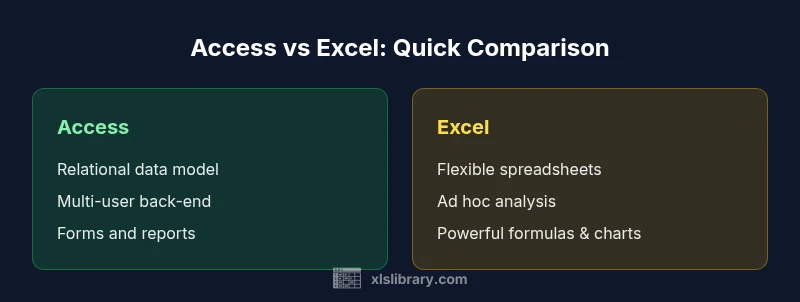
Access vs Excel is a comparison between two distinct data-management tools: a relational database (Access) and a flexible spreadsheet (Excel). For many teams, Excel handles quick analysis and ad hoc data tasks, while Access scales to structured data, multi-user workflows, and complex forms. The best choice depends on data complexity, collaboration needs, and long-term maintenance.
Access vs Excel: Core Concept and Use Cases
When deciding between Access and Excel, start with the data problem you’re solving. Access is designed as a relational database that can model complex data relationships across multiple tables, enforce data integrity, and support multi-user applications. Excel is a flexible spreadsheet ideal for quick calculations, ad hoc analysis, and lightweight data lists. The keyword access vs excel signals a fundamental choice: structured data management and scalable forms vs fast, exploratory analysis. For teams that routinely collect, validate, and relate data, a database approach reduces duplication and errors. For individuals or small teams scanning monthly figures or creating dashboards on the fly, Excel remains the go-to tool. The XLS Library team notes that many organizations use both: a well-structured Access backend feeding Excel-based reports and dashboards. This hybrid approach often delivers both reliability and agility.
Data Modeling and Schema Design: Tables, Keys, and Relationships
Access emphasizes relational modeling: you define tables with primary keys, foreign keys, and relationships. You can enforce referential integrity to prevent orphaned records and to maintain consistent lookups across tables. Queries join tables using SQL or the Access query designer, enabling complex data retrieval. Excel, in contrast, stores data in flat worksheets; relationships are not built-in, and data integrity is enforced only by user discipline or external checks. When you need normalized data structures, multi-table designs, and formal constraints, Access wins. When your data is casual, loosely structured, or you need to restructure data quickly, Excel’s tabular approach is more agile. Consider a hybrid design where Access stores core data and Excel delivers raw extracts and ad hoc analyses.
Data Volume, Performance, and File Management
Access handles moderate-sized databases stored as a single file (.accdb), which can be convenient but grows brittle as data scales. It’s practical for thousands to tens of thousands of records per table depending on hardware; large datasets can slow performance and complicate maintenance. Excel workbooks can become unwieldy as rows approach limits (modern versions support up to around a million rows), with performance dipping as files grow, especially with volatile formulas or extensive calculations. In real-world scenarios, users often offload heavy analytics to external tools (Power Query, Power Pivot, or SQL Server) while keeping lighter operation in Excel. The decision hinges on storage needs, backup strategy, and how frequently multiple people access the data simultaneously.
Multi-User Collaboration and Access Control
Access is designed for multi-user environments with shared backends, enabling concurrent edits on a managed database, with user-level permissions and role-based access. While it’s not a perfect multi-user solution without a central backend, it supports distributed teams in small to medium organizations. Excel supports co-authoring in cloud-hosted workbooks, but real-time collaboration can be fragile, requiring version management and controlled sharing to avoid conflicts. If you need strong access control and centralized data governance, choose Access; if your priority is real-time collaboration on lightweight datasets, Excel with cloud sharing may be sufficient. In practice, many teams implement a hybrid workflow: Access for data storage and Excel for analysis snapshots.
Data Integrity, Validation Rules, and Business Logic
Relational databases enforce data integrity through constraints, referential checks, and stored rules. Access allows you to implement validation at the form and table level, and you can embed business logic using queries or VBA. Excel lacks robust built-in data constraints; you rely on data validation rules, error checks, and disciplined data entry. This makes Access more reliable for critical data where mistakes have downstream consequences. Excel excels at flexibility but is more prone to inconsistent entries if not governed by templates or automated controls. If your workflow depends on strict data integrity, lean on Access; for exploratory work with less risk of data corruption, Excel is often acceptable with proper governance.
User Interfaces: Forms, Reports, and Dashboards
Access’s strength lies in its built-in forms and reports. You can tailor user experiences for data entry, review, and reporting, and you can set up menus to guide non-technical users. Excel emphasizes spreadsheets, charts, and dashboards that can be rapidly assembled with minimal setup. Modern Excel supports Power BI integration, slicers, and advanced visualizations, but the interface remains more ad-hoc than database-centric UIs. If you need structured data entry and formal reports, Access shines; if you want flexible analytics and dashboards, Excel wins. A common pattern is to use Access for data capture and Excel for analysis and visualization.
Automation and Customization: Macros, VBA, and Beyond
Access provides a VBA environment for automating forms, reports, and data processes. It supports event-driven programming to enforce workflows, batch updates, and data migrations. Excel’s macros and the newer Office Scripts enable automation of repetitive tasks, data cleansing, and dashboard refreshes. For heavy automation, VBA in Access or Excel can unify workflows, but targeting the right tool improves productivity. If your automation favors data routing, record-level updates, and user actions, Access plus VBA can be powerful; for macro-driven pipelines and rapid dashboard refreshes, Excel’s ecosystem is more mature.
Interoperability and Integration: Excel with Power BI, Access with SQL Server
Excel plays well with BI ecosystems: Power Query, Power Pivot, Power BI, and external data sources. It serves as a flexible data sink or staging area for analytics. Access can serve as a front-end to SQL Server or Azure SQL, enabling robust enterprise-scale data storage and reporting. Both tools integrate with broader Microsoft 365 workflows, enabling automation, sharing, and governance across departments. If you require enterprise-scale data storage and analytics, a backend like SQL Server with an Access front-end or Excel-based dashboards is common. For lighter scenarios, Excel-based dashboards may suffice.
Migration Scenarios: Moving Data Between Excel and Access
Transferring data involves mapping flat structures to relational schemas or extracting normalized data from tables for analysis in Excel. Importing Excel data into Access often requires cleaning duplicates, defining primary keys, and establishing relationships. Conversely, exporting Access data to Excel is common for offline analysis, but you may lose relational context and referential integrity in the worksheet. Planning is essential: agree on primary keys, define relationships, and establish data governance rules before migration. In practice, many teams use import/export routines or linked tables so updates in the source remain synchronized with the analytical layer.
Cost, Licensing, and Total Cost of Ownership
Access and Excel typically come bundled with Microsoft 365 subscriptions or standalone licenses. The cost difference is less about per-seat licensing and more about the total cost of ownership: training time, maintenance, data migration, and the need for IT governance. Excel often remains cheaper upfront for light users, while Access can incur higher support costs but saves on long-term data administration for larger datasets. If you expect rapid scaling or complex data governance, factor in licensing for SQL Server or Access Services in SharePoint options. Always measure hidden costs such as backups, security, and user management.
A Practical Decision Framework: Quick Guiding Questions
- What is the data model complexity?
- Do many users need to interact with the data simultaneously?
- Is structured data integrity critical for your workflow?
- Do you require forms and standardized reports?
- How important are rapid analytical dashboards and ad hoc exploration?
- What is the organization’s existing Microsoft ecosystem and skill set?
Practical Scenarios and Case Studies (Hypothetical)
- Scenario A: Small non-profit tracks donors in Access; volunteers enter data via forms; quarterly reports created in Access and exported to Excel for charts.
- Scenario B: Marketing team uses Excel to track campaign metrics; when data expands, they move to Access for consolidation and multi-user input.
- Scenario C: A school district uses Excel for class rosters; admin creates a linked Access database for scheduling and cross-table reporting.
Comparison
| Feature | Access | Excel |
|---|---|---|
| Data modeling capability | Relational data model with tables, keys, and relationships | Flat worksheets; built-in relationships not required |
| Multi-user support | Backend-centric with structured access control for shared databases | Real-time collaboration in cloud workbooks (limited in traditional setups) |
| Data integrity and validation | Strong constraints and referential integrity via keys and validation rules | Reliance on data validation and user discipline; less enforceable constraints |
| User interface for data entry | Forms and reports with customizable UI for data capture | Grid-like entry with flexible analyses; dashboards and charts |
| Automation | VBA for robust backend automation and event-driven tasks | Macros and Office Scripts for macros-driven workflows and dashboards |
| Scalability and deployment | Single-file database with potential server-backed options for scale | Best for smaller datasets; scales with cloud and add-ins |
| Best for | Structured, multi-user data and app development | Ad hoc analysis, lightweight data tasks, rapid dashboards |
Benefits
- Clear separation of data and presentation reduces errors
- Relational data model improves integrity and query accuracy
- Stronger multi-user collaboration with controlled backends
- Dedicated forms and reports streamline data entry and governance
What's Bad
- Steeper learning curve and higher maintenance
- Excel remains easier for quick analysis and flexible formatting
- Migration between formats can be complex and time-consuming
Access is the better choice for relational data and multi-user environments; Excel wins for quick analysis and flexible, presentation-ready outputs.
If data integrity and governance are priorities, choose Access. For fast analysis and lightweight projects, Excel is preferable. In many scenarios, a hybrid approach leveraging both tools yields the best results.
People Also Ask
Is Access better than Excel for large, complex databases?
In many cases, Access handles structured, relational data more reliably and supports multi-user workflows, whereas Excel is better for quick analyses on smaller datasets. Consider the data model, collaboration needs, and governance requirements before deciding.
Access is typically better for large, complex databases with relationships. Excel is great for quick analysis on smaller datasets.
Can Excel replace Access for multi-user apps?
Excel can support collaboration in cloud workbooks, but it lacks robust relational constraints and centralized governance found in Access. For mission-critical multi-user applications, Access is usually the better fit.
Excel can handle some collaboration, but Access is generally better for multi-user apps.
How do I migrate data from Excel to Access?
Migration involves cleaning data, defining primary keys, creating a relational schema, and importing tables. After import, relate tables and add integrity checks. You may need forms and reports to adapt to the new structure.
Migrate by cleaning data, setting keys, creating related tables, and importing. Then build forms and reports.
Can I use both tools in the same workflow?
Yes. A common pattern is to store raw data in Access, then export cleansed data to Excel for ad hoc analysis and dashboards. Access can also serve as a data source for Excel reports.
Yes, using Access for data storage and Excel for analysis is a common workflow.
What about cloud options and collaboration?
Excel Online supports real-time collaboration in cloud workbooks. Access cloud options are more limited and typically rely on a backend (SQL Server) or hosted Access apps. If cloud collaboration is a priority, Excel’s ecosystem is stronger.
Excel's cloud collaboration is strong; Access relies more on backend servers.
Is there a learning curve I should expect?
Yes. Access requires understanding relational databases, SQL queries, and form/report design, while Excel focuses on formulas and data organization. Expect a steeper ramp for Access but faster results with basic Excel tasks.
Access has a steeper learning curve; Excel is quicker to learn for basics.
The Essentials
- Define data model needs before tool choice
- Access is ideal for relational data and governance
- Excel excels at ad-hoc analysis and dashboards
- Many teams benefit from a hybrid, two-tool workflow