Excel Compare to Sheets: A Practical Side-by-Side Guide
A practical, data-driven comparison of Excel vs Sheets, focusing on features, collaboration, offline access, and use-case guidance to help you choose. Explore excel compare to sheets to understand strengths, weaknesses, and best-fit scenarios for your workflows.


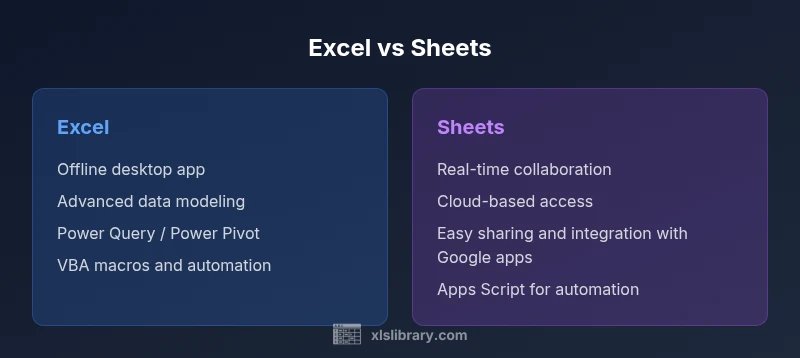
Excel offers powerful data modeling, advanced formulas, and offline access, while Sheets shines with real-time collaboration and web-based convenience. For most individual or small-team tasks, Sheets is fast and easy; for large datasets, complex analytics, and enterprise governance, Excel remains the stronger option. The best choice depends on your workflow, data size, and collaboration needs.
Why the Excel compare to Sheets matters
According to XLS Library, choosing between Excel and Sheets isn’t just about features on a page; it’s about how teams work with data in the real world. The phrase excel compare to sheets captures a core decision many organizations face: prioritize offline capability and advanced analytics, or lean into cloud-based collaboration and universal access. This guide uses a practical lens, focusing on real-world tasks, data sizes, and team dynamics to help you pick the tool that fits your daily workflows. We’ll emphasize scenarios, trade-offs, and actionable steps you can take to harmonize usage across both platforms when needed.
Quick-start landscape: where Excel and Sheets sit in practice
In most office environments, the decision hinges on two axes: offline vs. online, and advanced analytics vs. straightforward data entry. Excel remains the staple for heavy data lifting, complex modeling, and enterprise governance. Sheets shines when teams must collaborate in real time, access work from any device, and integrate seamlessly with Google Workspace. The goal of this comparison is not to declare a universal winner, but to map decision criteria to your actual workloads and collaboration patterns.
Offline access and cloud implications
Offline access is a key differentiator. Excel’s desktop app provides robust offline capability and local processing power, enabling complex work without relying on an internet connection. Sheets, being cloud-first, leverages online storage and synchronous editing, which is excellent for distributed teams but may introduce latency or limitations when connectivity is unstable. For analysts who frequently pair large data models with external data connections, Excel’s desktop environment often offers more predictable performance. Conversely, teams that rely on consistent access from multiple locations benefit from Sheets’ cloud-based approach, with automatic saving and version history.
Collaboration and real-time editing
Real-time collaboration is Sheets’ strongest suit. Multiple users can simultaneously edit a single sheet, see changes instantly, and communicate through comments. While Excel supports co-authoring via OneDrive or SharePoint, the experience can be slower in practice and depends on network conditions and file size. If you’re coordinating across remote team members, Sheets reduces friction by enabling live updates and in-browser editing. For projects requiring formal change tracking, strict governance, and concurrent work on expansive data models, Excel’s robust feature set still provides powerful versioning and auditing capabilities through enterprise deployments.
Data modeling, analytics, and performance
Excel is widely recognized for its data modeling capabilities. Features like Power Query and Power Pivot (within the Desktop/Power BI ecosystem) enable complex ETL, relationships, and analytical calculations that scale with workstation power. Sheets provides solid data handling for typical business workloads and benefits from cloud scalability, but complex relational modeling and very large datasets can be less forgiving in Sheets due to cloud quotas and browser limitations. In practice, Excel’s analytics toolchain remains the benchmark for data-rich tasks, while Sheets covers everyday analytics with a lighter footprint and faster sharing.
Formulas, functions, and automation
Both platforms offer strong formulas and scripting options, but they diverge in language and ecosystem. Excel’s formula library is vast, and it integrates with VBA macros, Power Query, and Power Automate for automation and data workflows. Sheets relies on Google Apps Script for automation, along with a broad set of built-in functions and array formulas. If your work requires advanced automation, cross-application data moves, or enterprise-grade data modeling, Excel offers a deeper toolset. If you prefer a cloud-native scripting environment tied to Google Workspace, Sheets provides a compelling alternative.
Integration and ecosystem
Excel sits at the center of the Microsoft ecosystem, with tight links to Power BI, Teams, and the broader Office suite. Sheets connects naturally to Google Workspace apps, Google Drive, and apps via Apps Script. When your organization already uses Microsoft 365, Excel provides seamless interoperability with Power BI and Azure-based data services. If your stack revolves around Google services, Sheets often delivers smoother integration with Drive, Docs, and Calendar. The decision should consider where your data originates and where it needs to circulate.
Security, governance, and compliance
For enterprise environments, governance and security are critical. Excel’s governance features—data loss prevention, granular permissions, and auditing—are deep within the Microsoft security stack. Sheets offers robust admin controls within Google Workspace, including access management, sharing restrictions, and activity logs. Each tool has strengths depending on your regulatory requirements and IT policies. If you need formal audit trails and controlled data movement, Excel may offer more mature enterprise controls in many organizations.
Pricing, licensing, and accessibility
Pricing and licensing drive total cost of ownership. Sheets is typically included with Google Workspace accounts or available freely as part of a Google account for basic use, with paid tiers for business features. Excel’s cost often hinges on Microsoft 365 subscriptions or standalone licenses, which can scale with enterprise needs. When budgeting, consider not just the sticker price, but also the value of collaboration features, data governance capabilities, and the IT overhead associated with maintaining either platform in your environment.
When to choose Excel: practical decision patterns
If your daily work involves heavy data modeling, large datasets, and rigorous analytics, Excel is usually the safer bet. The desktop app’s performance, combined with Power Query/Power Pivot and VBA, enables advanced workflows, robust offline access, and sophisticated data connections. Teams that require centralized governance, reproducible analytics, and deep reporting tend to gravitate toward Excel as their primary tool. In mixed environments, use Excel for heavy analysis and Sheets for collaborative data collection and initial data gathering.
When to choose Sheets: practical decision patterns
Sheets is the go-to for teams that prioritize collaboration, rapid sharing, and cross-device accessibility. If your workflows rely on Google Workspace, real-time multi-user editing, and simple deployments, Sheets offers compelling value. For lighter analytical tasks, quick dashboards, and projects centered on document-driven collaboration, Sheets can be more efficient than Excel. In environments where both tools exist, establishing interoperability guidelines—exporting/importing between formats and using common data structures—helps maximize productivity.
Migration, interoperability, and practical tips
When migrating between Excel and Sheets, use common file formats like .xlsx and .csv to preserve structure. Be mindful of formula compatibility, as some advanced Excel functions may not translate directly to Sheets. Apps Script vs. VBA scripting requires translation or reimplementation. A practical approach is to define a core data model in one tool and provide access layers in the other, enabling teams to work in their preferred environment while keeping data consistent.
Comparison
| Feature | Excel | Sheets |
|---|---|---|
| Offline access | Full offline desktop app with local processing | Web-based with offline mode available; relies on browser storage |
| Collaboration | Co-authoring via OneDrive/SharePoint; best with stable networks | Real-time editing with multiple users; seamless across devices |
| Data capacity and performance | Desktop performance with large datasets; depends on hardware | Cloud-based; scalable but can depend on network and browser limits |
| Formulas & functions | Extensive function library; Power Query/Power Pivot; VBA 가능 | Modern functions; cell formulas; Apps Script for automation |
| Automation | VBA macros; Power Automate; advanced data workflows | Apps Script; macro support; workflows via Google Workspace |
| Integration and ecosystem | Deep integration with Power BI and Office apps | Tight integration with Google Workspace and Drive |
| Pricing and access | Microsoft 365/licensing;enterprise options | Google account access; Workspace options for teams |
| Security and governance | Enterprise-grade controls and auditing in Microsoft stack | Admin controls within Google Workspace; strong cloud security |
Benefits
- Excel provides robust offline capability and deep analytics tooling
- Sheets enables effortless real-time collaboration across devices
- Powerful automation options in each ecosystem (VBA/Apps Script)
- Strong cross-platform access and integration within each vendor's stack
- Clearer governance options for larger teams when aligned to a single platform
What's Bad
- Excel can be heavy and has a steeper learning curve for new users
- Sheets depends on internet access for full functionality and performance
- Interoperability between Excel and Sheets requires careful data handling
- Advanced Excel features may require licensing and IT support in organizations
Excel excels for heavy data work and governance; Sheets shines in collaboration and cloud access
Choose Excel when your priority is offline access, complex analytics, or enterprise governance. Choose Sheets when collaboration, cross-device access, and lightweight workflows are paramount. In mixed environments, leverage interoperability practices to maximize productivity.
People Also Ask
Which tool is better for large datasets?
Excel generally handles large datasets more efficiently on a desktop due to local processing power and advanced data tools. Sheets is strong for moderate datasets in a cloud environment with easy sharing, but performance can be constrained by browser and network limits.
For very large datasets, choose Excel; for collaborative, cloud-based work with moderate data, Sheets is often sufficient.
Can you collaborate in real time in both?
Sheets supports real-time editing across multiple users out of the box. Excel offers co-authoring via OneDrive/SharePoint, but the experience may vary with file size and network conditions.
Sheets is best for real-time teamwork; Excel supports collaboration but can be slower with large files.
Are formulas and functions compatible across both tools?
Core formulas are broadly compatible, but some advanced Excel functions (like certain Power Query steps) may not translate directly to Sheets. Apps Script in Sheets provides a different automation path compared to VBA in Excel.
Most basics transfer, but check for function differences and consider scripting paths.
Is it easy to migrate data from Sheets to Excel and back?
Migration is feasible via standard formats such as .xlsx and .csv. Expect some formatting or function differences and test critical workflows after moving.
Export/import works, but verify formulas and formatting after migration.
What about macros and automation?
Excel uses VBA and Power Automate for automation; Sheets uses Apps Script for automation. Choose based on your preferred scripting environment and ecosystem.
Both offer strong automation, depending on your tech stack.
Which is cheaper for a team?
Sheets often comes bundled with Google Workspace or free basic use, while Excel typically requires a Microsoft 365 license. Total cost depends on user count, features, and governance needs.
Cost varies by licensing; Sheets can be cheaper for basic use, Excel may cost more with advanced needs.
The Essentials
- Assess data size and offline needs before choosing
- Prioritize Excel for analytics-heavy tasks and governance
- Prioritize Sheets for collaboration and cloud accessibility
- Plan interoperability when teams use both tools