How Many Excel Lines Fit on a Page: Practical Printing Guide
Learn how many Excel lines fit on a page under different margins, fonts, and scaling, and how to optimize print settings for clean, consistent reports. This XLS Library guide covers Page Layout, Print Preview, and practical workflows.


Excel lines per page vary with row height, font size, margins, orientation, and scaling. In Page Layout view, estimate the printable area by checking Print Preview and adjusting the Fit to Page or Scale to Fit settings. This guide explains how to calculate or approximate the printable lines for any worksheet.
How many Excel lines fit on a page: concept and variables
When you ask how many excel lines fit on a page, you’re really measuring how much content Excel can squeeze onto printed pages given the worksheet’s current settings. The exact count depends on row height, font size, default margins, page orientation, and the chosen scaling. The XLS Library team emphasizes that there is no one fixed number; instead, you adjust several levers to reach a predictable result. By understanding these variables, you can plan layouts that stay readable while avoiding excessive page breaks and awkward splits. According to XLS Library, the goal is to achieve a clean, consistent printout that aligns with your intended audience and paper size.
How Excel calculates printable area: margins, fonts, and row height
Excel determines how much fits on a page by calculating the printable area after margins are applied. If your rows are tall or you use a large font, fewer rows will fit on each page. Narrow margins increase content density, whereas wide margins reduce it. The height of each row and the width of each column don’t just affect horizontal and vertical space; they influence line counts by shifting where breaks occur. In practice, small changes to font size (for example, from 10 pt to 11 pt) can noticeably change how many lines print per page. You’ll see these effects in real time in Print Preview. The XLS Library approach is to experiment with margins and font sizes and then lock a preferred setting as a template for consistency.
Reading Print Preview and Page Setup in Excel
Print Preview is your best friend when estimating line counts. It shows exactly how the worksheet will look when printed, including headers, footers, and page breaks. To access it, go to File > Print or use the shortcut Ctrl/Cmd+P. In the Page Setup and Page Layout tabs, you can toggle Orientation (Portrait or Landscape), adjust Margins (Normal, Narrow, Wide, or Custom), and set Scaling (Fit to Page, Fit All Columns on One Page, or a specific percentage). The key is to observe how these changes affect the number of lines visible on each page and the total number of printed pages.
Step-by-step: adjust to fit on a single page (example workflow)
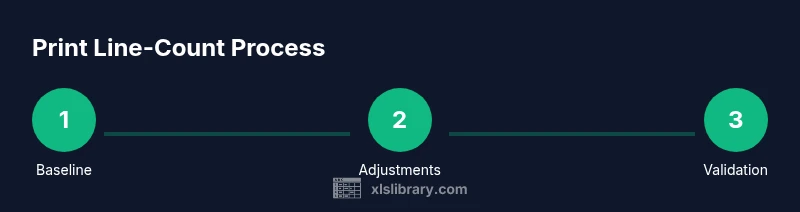
- Open Page Layout view and select File > Print to view the current printout. Why: to establish a baseline before changes.
- Set Orientation to Landscape if your worksheet is wide and legibility improves in landscape. Why: wider pages can reduce line wraps.
- Choose Margins: Narrow or Custom to increase printable area. Why: margins are a primary lever for line count.
- Apply Scaling: Use Fit to Page, or Scale to Fit with 1 page wide by 1 page tall as needed. Why: scaling compresses or expands content to fit the page, affecting readability.
- Re-check Print Preview after each adjustment. Why: ensuring the content remains readable is essential as you change scale.
- Lock these settings in a dedicated template for future worksheets. Why: consistency saves time and avoids surprises later.
Practical tips for common scenarios
- When presenting data to stakeholders, prefer larger fonts and legible margins, even if that increases the number of printed pages. The goal is clarity, not cramming data.
- For dense datasets, consider printing in landscape with a narrow margin and a modest scale, then use repeated header rows to aid readability.
- If your worksheet includes headers or frozen panes, ensure they print on each page to help readers track columns and rows. The practical outcome is predictable page breaks rather than awkward splits.
Pitfalls to avoid and how to fix them
- Avoid printing with default settings when your data spans many pages; small font changes can save or cost dozens of pages.
- Don’t rely on a single print preview if your workbook has multiple sheets; print each sheet separately to maintain consistency.
- Beware hidden rows or columns; they can alter line counts unexpectedly when you switch to Page Layout view.
Tips for consistency across workbooks
- Create a template workbook that uses your preferred Page Setup and Scaling options. This reduces guesswork across projects and teams.
- Document the chosen font size, margins, and orientation in the workbook’s metadata or a README sheet so teammates reproduce the same output.
- Use a standard paper size (Letter or A4) and a common font (e.g., Calibri 11) for uniform results.
Authorities and references
For official guidance on print options and page setup, refer to Microsoft’s Excel help resources and training materials. These sources provide authoritative steps for configuring page layout, margins, and scaling, which underpin best practices for printing Excel workbooks. See: https://learn.microsoft.com/en-us/office/troubleshoot/excel and https://support.microsoft.com/en-us/excel.
Summary of how to approach printing line counts
By understanding margins, font size, orientation, and scaling, you can reliably influence how many lines print on a page. Use Print Preview to validate changes, adopt a consistent template, and tailor settings to your audience and format requirements. The XLS Library recommends a deliberate, repeatable workflow to minimize variability across worksheets.
Tools & Materials
- Computer with Microsoft Excel (Windows or Mac)(Ensure the version supports Page Layout, Print Preview, and Scale to Fit (Excel 2016+ preferred))
- Printer connected and configured(Test print with the chosen paper size (Letter or A4))
- Paper size chosen (Letter or A4)(Match your worksheet’s primary audience and region)
- Printing accessories (optional)(Ruler or graph paper for manual verification if needed)
Steps
Estimated time: 20-35 minutes
- 1
Open Page Layout and Print Preview
Open the workbook and switch to the Page Layout tab, then use File > Print to view the current print setup. This establishes the baseline before making changes.
Tip: Use the Print Preview pane as your live feedback loop before printing. - 2
Set Orientation
If your data is wide, switch to Landscape to maximize horizontal space and potentially reduce the number of pages.
Tip: Landscape often improves readability for wide tables. - 3
Adjust Margins
Choose Narrow or Custom margins to increase the printable area. Margins are a primary lever for altering lines per page.
Tip: Small margin changes can have a big impact on page breaks. - 4
Apply Scaling to Fit
Use Fit to Page options, such as 1 page wide by 1 page tall, or scale to a specific percentage to control line density.
Tip: Scaling preserves readability if you pick a reasonable percentage. - 5
Check Print Preview Again
Re-open Print Preview to verify how many lines per page and how many total pages the sheet will use.
Tip: Iterate until the result looks balanced and legible. - 6
Repeat for Key Sheets
If your workbook contains multiple relevant sheets, adjust and print them individually to maintain consistency.
Tip: Consistency across sheets helps readers navigate the document. - 7
Save as Template
Save your Page Setup as a template or in a dedicated workbook so future prints follow the same rules.
Tip: Templates save time and prevent drift across reports.
People Also Ask
What determines how many lines print on a page in Excel?
Several factors determine line count: row height, font size, margins, orientation, and scaling. Changing any of these elements affects how many rows appear on each printed page. Use Print Preview to see the impact of each adjustment before finalizing.
Line count depends on row height, font size, margins, orientation, and scaling; check Print Preview to see the exact effect.
Should I always use Fit to Page when printing?
Fit to Page can help keep content on a single page or control page breaks, but it may shrink text and reduce readability. Use it when you need to constrain output to a fixed number of pages, and prefer not to sacrifice legibility.
Use Fit to Page when you must limit output, but beware of overly small text.
How do margins affect line counts?
Margins reduce the printable area; wider margins reduce, and narrower margins increase, the number of lines that fit. Consistent margins help ensure predictable printing across worksheets.
Margins shrink or expand the space available for content, directly changing line counts.
Can headers affect lines per page?
Yes. Repeating header rows or headers on each printed page can reduce usable space for data, effectively increasing the number of pages. Use the Rows to repeat at top setting to manage this.
Header rows take space, so plan for extra pages if you repeat them on every page.
Is it possible to print multiple sheets on one page?
Excel can print multiple sheets, but not usually on a single physical page unless you set up a consolidated print area or print to a single page using scale. Most workflows print each sheet separately for clarity.
Printing multiple sheets on one page is uncommon; use consolidated print areas if needed.
Watch Video
The Essentials
- Understand that line counts depend on margins, fonts, and scaling.
- Use Print Preview to validate changes before printing.
- Create a shared template for consistent results across workbooks.
- Always align paper size and orientation with your audience.