Is Excel or Access Better? A Practical Comparison for 2026
A thorough, objective comparison of Excel and Access, clarifying when to use each tool, the key differences in data models, collaboration, performance, and best practices for 2026.


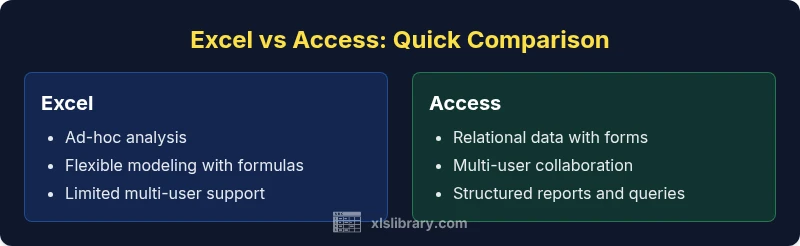
For lightweight, ad-hoc analysis and flexible modeling, Excel tends to be the better choice. For structured data, relational integrity, and multi-user environments, Access offers stronger data governance and built-in forms/reports. In most small to mid-size teams, start with Excel for quick analysis, then consider Access if you need relational data structures, forms, and centralized data management.
is excel or access better: a pragmatic lens
Choosing between Excel and Access is less about which program is universally superior and more about aligning the tool to the task. According to XLS Library, the decision hinges on data structure, collaboration needs, and long-term data governance. If you work mainly with numbers, ad-hoc modeling, and fast iteration, Excel’s familiar interface and extensive formula set can accelerate discovery. If your work requires linked tables, forms for data entry, and centralized reporting for multiple users, Access provides stronger relational data management. The goal is to minimize manual work, reduce errors, and ensure the right data is available to the right people at the right time. In practice, many teams use both tools in tandem—starting in Excel for exploration and moving to Access when a relational backbone becomes necessary, a pattern highlighted by the XLS Library Team as a pragmatic workflow.
According to XLS Library, Excel is often the first step in data work for many teams, while Access shines when data needs to be structured and governed as it scales. The key takeaway is to match the tool to the data lifecycle rather than forcing a single tool to cover every scenario. This strategy aligns with common business practice and reduces risk as data complexity grows.
This section sets the stage for a deeper comparison by foregrounding the practical criteria that matter: data model, collaboration, reporting, data quality, and integration with other Office tools. Throughout, expect nuanced guidance rather than a one-size-fits-all answer. The XLS Library Analysis, 2026 emphasizes that the choice is contextual, often revealing a hybrid approach as the most effective path for many organizations.
Comparison
| Feature | Excel | Access |
|---|---|---|
| Data model | Spreadsheet-based with cells, formulas, and charts | Relational database with tables, relationships, and queries |
| Multi-user collaboration | Limited concurrent editing; relies on sharing workbooks | Designed for multi-user access with record-level locking and controlled access |
| Forms and reports | Basic forms possible with data validation; reports via charts and PivotTables | Built-in forms, reports, and data entry screens tailored to users |
| Data volume and performance | Excellent for smaller data sets; performance degrades with very large spreadsheets | Better suited for larger data sets with indexed queries; performance scales with relational design |
| Automation and tooling | VBA/macros, Power Query, Power Pivot for modeling | VBA/macros, Access-specific queries, and form-based automation |
| Ease of learning | Widely known; quick ramp for beginners | Steeper learning curve but powerful for database projects |
| Licensing and cost | Typically included with many Office plans; easy distribution | Usually included with Office suites but deployment varies by edition |
| Integration with other tools | Strong integration with external data sources and Power Platform | Good integration with Office ecosystem and SharePoint; strong for apps with forms |
| Best for | Rapid analysis, modeling, and visualization | Relational data management, forms-driven data capture, and structured reporting |
Benefits
- Excel offers quick setup for experiments and lightweight data tasks
- Excel has broad compatibility and a vast formula library
- Access provides robust relational data management and structured forms
- Hybrid workflows enable seamless handoffs between analysis and data entry
- Power Query and VBA enhance automation across both platforms
What's Bad
- Excel can become error-prone with large, complex datasets and lack of data integrity controls
- Access requires more upfront design and a learning curve for relational modeling
- Managing multiple Excel workbooks can lead to inconsistent data definitions
- Migration between tools can introduce data mapping challenges in hybrid setups
Excel is the default choice for quick analysis; Access excels as a relational data backbone when governance and multi-user access are priorities.
For many teams, the best path is a hybrid approach: use Excel for exploration and lightweight modeling, then adopt Access for structured data, forms, and centralized reporting. This balances speed with governance and scales alongside data needs over time.
People Also Ask
What are the main differences between Excel and Access?
The primary difference is in data modeling: Excel is a workbook of cells ideal for analysis and quick modeling, while Access is a relational database designed for structured data, rules enforcement, and multi-user operations. Access supports forms and reports natively, whereas Excel relies on charts, PivotTables, and external reporting. Your choice should reflect whether you need a flexible worksheet or a governed relational system.
Excel is great for quick analysis; Access is better for structured databases with forms and reports.
Can I use both Excel and Access in the same workflow?
Yes. A common pattern is to use Excel for data exploration, cleaning, and ad-hoc calculations, then export or link the data to Access for relational treatment, data entry forms, and consolidated reporting. Keeping data definitions aligned across tools reduces synchronization issues.
You can start in Excel and move to Access for structured storage and forms.
Is Access suitable for small businesses?
Access is a practical option for small teams that need a centralized data store with controlled access, forms for entry, and reports. It’s less suitable for very large, enterprise-scale deployments or web-based apps, where databases with SQL Server or cloud-based solutions might be better fits.
Access works well for small teams needing structured data and forms.
What are typical limits or constraints to watch for?
Both tools have practical constraints. Excel has a finite number of cells per sheet and is memory-bound for very large workbooks; Access has database file size and user concurrency limits that influence scalability. Plan for governance, data validation, and clear ownership to avoid data drift.
Be mindful of data size and user access when planning projects.
How can I migrate data from Excel to Access?
A typical path involves defining a relational schema in Access, importing the Excel tables as linked or local tables, and creating relationships, forms, and queries to preserve data integrity. Validate data during import and set data types that reflect intended use. A staged approach reduces risk.
Create a relational schema in Access, then import and validate data.
The Essentials
- Assess data structure first: flat vs relational
- Start with Excel for rapid prototyping and analysis
- Move to Access for data governance and multi-user forms/reports
- Leverage hybrid workflows when appropriate
- Plan licensing and skill-building for teams