MS Excel vs MS Word: Practical Comparison for Office Users
Compare ms excel vs ms word: learn when to use each tool for data analysis and document creation, plus practical tips for hybrid workflows in offices and cross-application productivity improvements.


ms excel vs ms word: the right tool depends on the task. Excel excels at data organization, calculations, and analysis, while Word shines in narrative text, formatting, and long-form documents. This quick comparison identifies the primary strengths of each app, where they overlap, and practical guidance for choosing the best tool for a given workflow.
Core purpose and audience
MS Excel and MS Word serve different core needs in the modern office. When considering the relationship between ms excel vs ms word, it’s clear that Excel is optimized for numeric data, calculations, and models that can scale to large datasets. Word, by contrast, prioritizes long-form writing, layout precision, and document-rich narratives. The choice between these two tools hinges on the primary task you perform most often: data analysis and reporting versus drafting, formatting, and publishing text. For aspiring and professional Excel users, viewing Word as a companion for reporting is essential, while Word users can leverage Excel for data-backed appendices and charts to strengthen documents. The XLS Library team consistently emphasizes understanding these roles within real workflows to maximize efficiency.
Data capabilities: spreadsheets vs text documents
The most visible difference between ms excel vs ms word is how each program handles content. Excel’s grid-based structure makes it ideal for numbers, formulas, pivot tables, and dashboards. It supports advanced data analysis techniques like conditional formatting, nested functions, and data connections to external sources. Word’s strength lies in typographic control, footnotes, bibliographies, styles, and layout options that produce polished documents. Importantly, Word can import simple tables from Excel, and Excel can embed charts for dynamic reports. For teams, this cross-tool synergy reduces manual re-entry. In practice, you’ll often start with a data table in Excel, perform calculations, and then present findings by embedding results into a Word report to balance precision with readability.
Collaboration and document management
Collaboration models differ between the two apps. Excel supports shared workbooks, change tracking, and version history, which are crucial when multiple analysts update data sets. Word emphasizes track changes, comments, and review workflows, suitable for drafts and editorial approval. The two tools handle sharing differently: Excel workbooks often require consistent versioning to prevent conflicts, while Word documents rely on tracked edits and consolidated feedback. In hybrid teams, using Excel for data cacts and Word for narrative sections can reduce confusion and misalignment, particularly when you publish company-wide reports. The Office ecosystem’s integration points—such as embedding Excel charts in Word or exporting Word outlines to Excel for analysis—can bridge gaps efficiently.
Formulas, automation, and extensions
Excel’s formula engine is the core differentiator. It enables financial models, statistical analyses, and real-time dashboards via formulas, array calculations, and data connectivity. Power Query and Power Pivot extend capabilities further, enabling data shaping and advanced analytics. Word’s automation is more limited, focusing on styles, macros for repetitive formatting, and mail merge for personalized documents. This contrast means Excel often requires more training for power users, while Word training concentrates on typography and workflow efficiency. When your role blends both worlds, learning a few key Excel formulas and Word automation tricks can dramatically reduce manual effort across both applications.
Interoperability and file formats
Interoperability is a practical concern with ms excel vs ms word. Excel files (.xlsx, .xlsb) are the de facto standard for data sharing, but they can become unwieldy with large datasets or complex formulas. Word files (.docx, .dotx) are optimized for narrative content and formatting; they can include embedded objects from Excel, such as charts, tables, or even mini spreadsheets. Import/export routines typically require careful handling of data types, linked data, and formatting. The best practice is to export summarized data from Excel as a clean, well-formatted table or chart, then link or embed it into Word to preserve accuracy while preserving readability.
Typical use cases: when to choose Excel or Word
In a typical office, you’ll reach for Excel when you need to crunch numbers, build models, or manage structured data sets. Choose Word when the deliverable is a report, policy document, or communication piece that requires consistent styling and pagination. For hybrid documents—annual reports, financial summaries, or project briefs—you’ll often train both tools to work together. The ability to paste/static link charts from Excel into Word, or to pull data from Word into Excel via mail merge, can streamline workflows and reduce duplicate data entry. The trick is to map your tasks to the primary strengths of each tool and establish a consistent workflow for cross-tool content.
Pitfalls and common misconceptions
A frequent pitfall is assuming that Excel can replace Word for narrative content and vice versa. In reality, both tools are powerful but optimized for different outputs. Another misconception is that Excel work cannot be shared easily; modern Excel supports co-authoring and robust data protection, though complex formulas can become a maintenance burden if not documented. Similarly, Word can become unwieldy with very long documents lacking structure. A practical approach is to establish document templates, define styles, and create a clear handoff protocol between data teams and content teams to avoid misalignment and version conflicts.
Tips to maximize productivity when using both apps
- Define a clear data-to-document workflow: export from Excel, summarize in Word, and embed visuals for readability.
- Use linked objects and dynamic charts where appropriate to keep data up to date without duplicating work.
- Create shared templates with predefined styles and consistent headings to ease cross-app collaboration.
- Learn a few essential keyboard shortcuts and basic VBA or scripting to automate repetitive tasks across both apps.
- Establish a review cycle that leverages Word’s track changes and Excel’s data protection features to maintain accuracy while enabling collaboration.
How to convert content between Excel and Word
Converting content between ms excel vs ms word should be a deliberate, reversible process. For data tables, copy-paste with embedded options to preserve formatting or link cells so updates in Excel reflect in Word. For charts, consider embedding as a dynamic object or using snapshots for static reports. When data needs updating, prefer direct linking over manual copy-paste to minimize drift. Finally, use Word’s mail-merge features connected to an Excel data source to create personalized documents at scale.
Comparison
| Feature | MS Excel | MS Word |
|---|---|---|
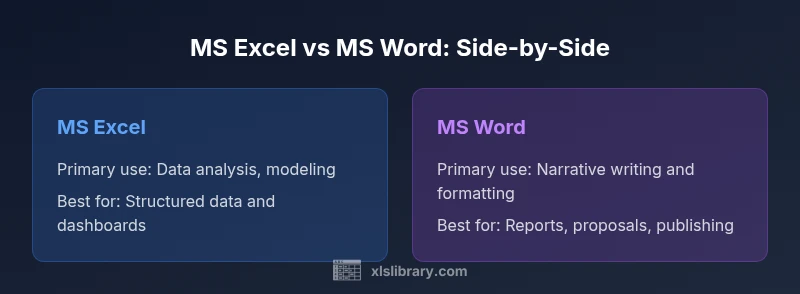
| Primary use | Data analysis, modeling, dashboards | Document creation, formatting, long-form writing |
| Best for | Structured data, calculations, and visualization | Narrative content, reports, and publishing |
| Automation options | Formulas, VBA, Power Query/Power Pivot | Macros for formatting; no native data modeling |
| Collaboration & sharing | Shared workbooks, version history | Track changes, comments, editorial workflows |
| File formats | .xlsx, .xlsb, .csv | .docx, .dotx, .rtf |
| Learning curve | Moderate to high for power users | Moderate for basic users; higher for advanced formatting |
| Cross-app interoperability | Strong with data import/export; charts and tables | Excellent with formatting and mail merge |
Benefits
- Excellent data handling and modeling capabilities
- Strong formulas, automation, and data connections
- Seamless cross-app integration with Word for reports
- Widely adopted; extensive community and learning resources
- Powerful for dashboards and data storytelling
What's Bad
- Not ideal for heavy narrative formatting or long-form writing
- Excel can become unwieldy with large, unstructured data
- Cross-app workflows require careful planning to avoid drift
- Some advanced features have a steep learning curve
Excel excels at data-driven tasks; Word excels at narrative documents; use both strategically for hybrid workflows
Prioritize Excel for data modeling and analysis, Word for writing and formatting. When outputs demand both precision and readability, integrate by embedding charts and linking data to maintain accuracy across documents.
People Also Ask
What is the main difference between MS Excel and MS Word?
Excel is optimized for data, calculations, and modeling; Word is optimized for narrative text and formatting. The two tools complement each other in hybrid workflows.
Excel handles data and calculations, while Word handles writing and formatting. They complement each other in combined reports.
Can I use Excel and Word together effectively?
Yes. You can embed Excel charts in Word, link data to Excel workbooks, and use mail merge with data from Excel. These integrations help keep content up to date while presenting it well.
Absolutely. Embed charts or link data to keep documents current and well-presented.
When should I choose Word over Excel?
Choose Word when your primary output is text, formatting, and publishing. For reports with heavy narratives, Word offers better readability and editorial controls.
If the goal is writing and layout, pick Word.
How do I embed an Excel chart in a Word document?
In Word, use Insert > Object or Copy and Paste Special to embed a chart. For live updates, choose Link to file so changes in Excel reflect in Word.
Insert or paste; link for live updates.
What are best practices for version control when using both apps?
Use centralized storage, consistent naming, and documented update procedures. Enable track changes in Word and maintain clear workbook versions in Excel.
Keep versions clean and documented to avoid confusion.
Where can I learn more about Office integration?
Microsoft’s official support and Office training resources cover cross-app workflows. Industry blogs and XLS Library tutorials also offer practical guidance.
Check official support and trusted tutorials for hands-on guidance.
The Essentials
- Identify your primary task to choose the right app
- Leverage cross-app features for hybrid reports
- Establish templates and styles for consistency
- Automate repetitive tasks across both apps
- Plan data-to-document handoffs to avoid drift