Online PDF to Excel Converter: A Practical Guide
A practical guide to using online PDF to Excel converters for quick data extraction. Learn when to use them, maximize accuracy, and protect your data with best practices from XLS Library.


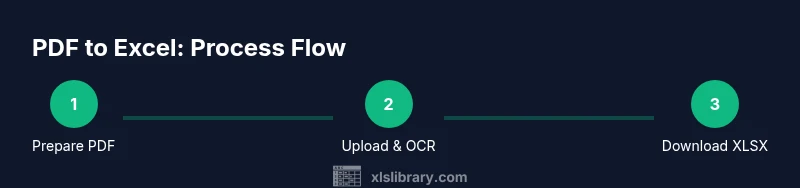
Convert a PDF to Excel online in a few simple steps: pick a trusted online converter, upload the PDF, apply OCR if necessary, and download the resulting spreadsheet. Ensure the file isn’t password-protected, review the table structure after download, and save a backup copy for safety. Many services keep your data private, but read the privacy policy to be sure.
What is an online PDF to Excel converter?
According to XLS Library, an online PDF to Excel converter is a web-based tool that uses OCR (optical character recognition) to extract tabular data from PDFs and convert it into an editable Excel workbook. These services run in your browser, so you don’t need to install software. They’re convenient for quick data extraction when you only have a few tables to move into Excel for analysis. When selecting a converter, consider OCR language support, how well the tool preserves table structure, and the export options offered. The best options balance accuracy with ease of use, though results can vary depending on the PDF’s layout and the scan quality. In this guide, we’ll explore how these converters work, what to expect, and how to maximize precision while protecting your data.
How OCR and table recognition affect results
Online PDF to Excel converters rely on OCR to interpret the text and detect table boundaries. The accuracy of OCR depends on the PDF’s clarity, whether the text is embedded or scanned, and the presence of complex layouts like nested headers or merged cells. When data is presented in irregular columns or multi-line headers, the converter may misplace values or merge cells incorrectly. Some tools offer advanced table recognition that preserves column alignment and headers, while others capture data row-by-row with less fidelity. It’s common to see slight misalignments after conversion, which often require quick cleanup in Excel (adjusting column widths, merging cells, or splitting data).
When to use online converters vs desktop software
Online PDF to Excel converters excel for quick, one-off extractions or when you don’t want to install software. They’re ideal for ad-hoc data tasks, field notes, or when you’re traveling and need a fast export. Desktop solutions or specialized data extraction tools can offer more robust OCR, batch processing, and offline security, which is valuable for large projects or sensitive data. If you routinely convert multi-page PDFs with complex tables, a desktop option or a desktop-based workflow (like Power Query in Excel) may provide more control and repeatable results. Always weigh convenience against control, data privacy, and cost.
Common pitfalls and how to avoid them
Common issues include password-protected PDFs, non-text PDFs, and documents with dense formatting that confuse the OCR engine. Before converting, remove any passwords, ensure you have permission to extract data, and test with a small page to gauge accuracy. Be mindful of privacy: online converters may process your data on external servers, so only upload non-sensitive documents or use trusted providers with clear retention policies. If results look off, try a different tool or switch to a converter that emphasizes layout retention and supports your language.
Practical tips for improving accuracy
To improve accuracy, start with a clean source: if possible, use a text-based PDF rather than a scanned image. Choose a converter that explicitly supports the language used in your document and offers options for retaining headers and merged cells. After conversion, review the Excel output and use built-in features like Wrap Text, Text to Columns, and Find & Replace to tidy data. For multilingual PDFs, confirm OCR language settings and run a second pass if needed. Finally, download a backup copy of the original PDF in case you need to re-check data.
How to choose a converter: features to look for
Key features to consider include OCR accuracy, language support, and layout retention. Look for export formats beyond XLSX (such as CSV or XSL) and the ability to handle multi-page tables. Privacy controls matter: read the privacy policy and data retention terms, and prefer services that offer session-based processing without storing files long-term. Batch processing, pricing transparency, and user reviews can also guide your choice. If you frequently convert PDFs with tables, test a few tools to compare results on representative pages.
Data privacy and security considerations
When using online converters, data privacy is essential. Review the provider’s privacy policy, data retention terms, and whether files are stored or shared with third parties. If you’re handling sensitive data, prefer offline or on-premises solutions, or select a trusted online service with strong encryption and clear data deletion policies. Avoid uploading confidential information unless you’re confident in the provider’s data protection practices. Always clear your browser cache and signed-in sessions after completing conversions.
Tools & Materials
- Internet-connected device(Any computer, tablet, or smartphone with a modern browser)
- Web browser(Chrome, Edge, Firefox, or Safari (latest version))
- PDF document(Unencrypted file for straightforward extraction)
- Downloaded Excel file location(Choose a folder where you’ll save the output)
- Privacy awareness(Review each service’s privacy policy and data retention terms)
- Optional: OCR language pack(If the PDF contains non-English text)
Steps
Estimated time: 15-25 minutes
- 1
Prepare your PDF
Ensure the PDF is accessible and not password-protected. If the document is scanned, understand that OCR will be required to extract text and numbers. Gather a representative page to test with first, so you can judge accuracy before processing the entire file.
Tip: If the PDF is password-protected, obtain permission or remove the protection before attempting conversion. - 2
Choose a converter
Select a reputable online PDF to Excel converter with clear privacy terms and a testable free option. Check whether it supports your document language and whether it preserves table headers. Review any user feedback on accuracy for similar PDFs.
Tip: Prefer services that explicitly mention layout retention and language support. - 3
Upload the PDF
Upload the PDF file to the converter. If the tool offers drag-and-drop, use it for speed. Confirm the file name and page range if the option exists to avoid pulling extraneous pages.
Tip: For large files, some services limit page ranges; process in batches if needed. - 4
Configure output options
Choose the Excel format (e.g., .xlsx) and enable options that preserve headers and column alignment. If available, select language and recognition settings suitable to your document. Decide whether to include a separate sheet for metadata.
Tip: Enable header retention if your table has clear column names. - 5
Run the conversion
Start the conversion and wait for the tool to process the PDF. The time varies with document size and service speed. If the page uses complex formatting, you may need longer processing or a second pass.
Tip: Be patient with larger PDFs and run a quick check on the first page after processing. - 6
Review and clean
Open the Excel file and verify that data appears in the correct columns. Clean any misaligned data using Excel features like Text to Columns, Find & Replace, or simple manual adjustments. Compare a sample row to the original PDF to confirm fidelity.
Tip: If many rows are misaligned, try a different converter or adjust OCR language settings. - 7
Save and back up
Save the Excel file to your chosen location and create a backup copy. If data privacy is a concern, delete the uploaded files from the converter’s server if an option exists.
Tip: Store a copy of the original PDF for reference in case you need to re-check data later. - 8
Evaluate workflow for future use
Assess whether you’d benefit from a desktop tool or a repeatable workflow (e.g., Power Query) for similar PDFs. Document any adjustments you made, so you can reproduce results consistently.
Tip: Document the steps and settings you used for future conversions.
People Also Ask
What is PDF to Excel conversion?
PDF to Excel conversion uses software or online services to extract tables from a PDF and place them into an Excel workbook. It typically uses OCR for scanned PDFs and attempts to retain the table structure. The result is editable data you can analyze in Excel.
PDF to Excel conversion is when a PDF's tables are extracted into an Excel file so you can edit and analyze the data.
Do I always need OCR for PDFs?
OCR is needed when the PDF is a scanned image rather than text-based. If the PDF already contains selectable text, OCR may not be required, and the converter can export data directly. In mixed documents, you may see mixed results.
OCR is required for scanned PDFs; if the text is already selectable, you can export directly.
Are online converters safe for sensitive data?
Safety depends on the provider’s privacy policy and data handling practices. For highly sensitive data, prefer offline tools or services with strict retention and deletion policies. Always review terms before uploading.
Safety depends on the provider. For sensitive data, use offline tools or trusted services and read the policy.
Can I preserve complex table layouts?
Some converters better preserve complex layouts, including headers and merged cells. If your PDF has sophisticated formatting, test multiple tools to find one that retains most of the structure.
Some tools do a better job with complex layouts; test a few to see which keeps the structure.
What formats can I export to besides XLSX?
Most online converters export to XLSX or CSV. Some support additional formats or offer batch processing for multiple files. Check the feature list before starting.
Most export to XLSX or CSV; some offer other options—check the features.
Why do I see misaligned data after conversion?
Misalignment commonly results from irregular table structures or poor OCR accuracy. Adjust language settings, try another converter, or perform post-conversion cleanup in Excel to restore alignment.
Misalignment often happens due to complex tables; adjust settings or clean up in Excel afterward.
Watch Video
The Essentials
- Choose reputable converters and review privacy policies.
- OCR quality heavily influences results; confirm language support.
- Always verify the final sheet for alignment and formatting.
- Consider privacy and data security when handling sensitive PDFs.