Convert PDF to Excel for Free: A Practical Guide
Learn how to convert PDF tables into clean Excel data using free online tools. This step-by-step guide covers best practices, privacy tips, and troubleshooting for accurate results in 2026.


Want to convert a PDF table into an Excel spreadsheet for free? This guide shows you how to convert pdf to excel file online free using reputable online tools, with tips on accuracy, privacy, and post-export cleanup. Follow the steps to save time and reduce manual data entry. Whether you work with financials, inventories, or lists, this approach helps you get structured data quickly.
Why PDF-to-Excel conversion matters (and why free online tools can help)
According to XLS Library, many professionals rely on converting PDF tables into structured Excel data rather than manually retyping. This saves time, reduces human error, and improves consistency when you regularly handle invoices, reports, or inventories. In 2026, free online options have become surprisingly capable, but quality varies based on the source PDF and the tool’s OCR engine. The goal is to preserve table headers, numeric precision, and column alignment while minimizing the amount of cleanup needed in Excel. If you frequently work with tabular PDFs, a reliable free converter can become a staple part of your data workflow.
How online PDF-to-Excel converters work (the tech behind the scenes)
Most tools rely on two core capabilities: optical character recognition (OCR) and smart table detection. OCR translates scanned pages into machine- readable text, while table detection tries to map rows, columns, and headers into an Excel-like grid. Some products offer layout preservation, column reflow, and basic formula recognition. As noted by XLS Library analysis, OCR quality varies, and accurate results depend on language support, font clarity, and how complex the source table is. In practice, you’ll get the best results from well-supported languages and simpler table structures.
Privacy, security, and what to watch out for when uploading PDFs
Free online converters often operate in the browser or on remote servers. Before uploading sensitive documents, review each tool’s privacy policy and data retention terms. If data privacy is a concern, consider offline or desktop options or use converters that explicitly delete files after processing. Avoid generic sites for confidential information and always verify the destination file after download to ensure no data was altered during transfer.
What features matter in a free tool (and how to compare them)
Prioritize OCR accuracy, language support, and the ability to export to XLSX or CSV. Check file size limits, page limits, and whether the tool keeps a copy of your data. Look for additional options like table recognition quality, support for multi-page PDFs, and post-processing features in Excel (Power Query compatibility, clean-up options). A good free tool should balance ease of use with reasonable output quality, minimizing manual cleanup later.
A practical workflow: from PDF to usable Excel data (example)
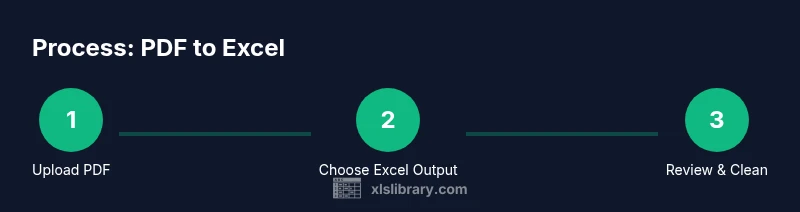
Start by choosing a reputable free online converter. Upload your PDF, select Excel or XLSX as the output, and begin the conversion. Download the file and open it in Excel. Review headers, merged cells, and numeric formatting. Use simple Excel techniques—such as Text to Columns, Find & Replace, and Power Query—to fix any misaligned data. If the PDF contains tables with complex layouts, be prepared for small formatting adjustments. This repeatable workflow helps you extract data consistently across multiple PDFs.
AUTHORITY SOURCES
- NIST (nist.gov) on document formats and accessibility: https://www.nist.gov/
- Adobe (adobe.com) on PDF technology and best practices: https://www.adobe.com/
- Microsoft Docs (docs.microsoft.com) on Excel and data import: https://docs.microsoft.com/
These sources provide foundational context about PDFs, OCR, and Excel data handling for more rigorous workflows.
Tools & Materials
- Free online PDF-to-Excel converter(Choose a reputable site; verify privacy terms before uploading any sensitive data)
- A modern web browser(Chrome/Edge/Firefox recommended for reliability)
- Original PDF(s)(Keep a local copy in case you need reprocessing)
- Excel (desktop or online)(Used to open and clean up the output file)
- Optional: Power Query (Excel)(Helpful for advanced cleanup and automation)
Steps
Estimated time: 15-25 minutes
- 1
Choose a trusted online converter
Browse reputable options, read privacy terms, and ensure the site deletes uploads after processing. This helps protect sensitive data.
Tip: Prefer tools with clear data-retention policies and fewer third-party scripts. - 2
Upload your PDF
Select the PDF you want to convert. If the file is large, consider splitting into smaller chunks if the tool has size limits.
Tip: Use PDFs with text (not just images) for better OCR results. - 3
Choose output format and options
Select Excel (XLSX) as output. If available, choose language and simple table detection to improve accuracy.
Tip: Turn off unnecessary styling to reduce formatting cleanup later. - 4
Run the conversion
Start the conversion and wait for the tool to finish. Some pages show a progress bar or estimated time.
Tip: If there’s a page limit, retry with smaller PDFs or split pages. - 5
Download and review the Excel file
Open the result in Excel and inspect headers, columns, and numbers. Look for misaligned cells or merged data.
Tip: Use 'Freeze Panes' to scan large sheets and verify alignment quickly. - 6
Clean and normalize in Excel
Apply basic cleaning: Text to Columns, remove extra spaces, and format numbers as numbers. If needed, re-map columns.
Tip: Leverage Power Query for repeatable cleanup steps.
People Also Ask
Is it safe to upload PDFs containing sensitive data to online converters?
It depends on the tool's privacy policy and data handling. Look for explicit deletion after processing and avoid sharing confidential information with unknown sites.
Only upload sensitive PDFs to trusted sites with clear deletion policies after processing.
Do online tools preserve original formatting and formulas?
Free tools vary in how well they preserve tables, headers, and formulas. You may need post-processing in Excel to restore structure.
Expect some formatting adjustments; plan for cleanup after conversion.
Can scanned PDFs be converted accurately?
Yes, but accuracy depends on the OCR engine and language, font clarity, and table complexity. Clean-up is often required.
OCR helps, but you’ll usually need some manual checking.
What should I do if the output has merged cells or misaligned columns?
Use Excel tools like Text to Columns, Find & Replace, and Power Query to reshape data into a clean table.
Merging and splitting columns in Excel can fix most misalignments.
Are there free desktop alternatives to online converters?
Yes—desktop tools or suites may offer offline conversion, preserving privacy and sometimes better formatting. Evaluate based on features and cost.
There are offline options if you need stronger privacy.
Watch Video
The Essentials
- Identify a trustworthy online converter before uploading.
- Check OCR language support and export options.
- Review and clean data in Excel after export.
- Use Power Query for repeatable cleanup and automation.
- Protect sensitive PDFs by using offline tools when possible.