Word vs Excel vs PowerPoint: A Practical Office Tools Guide
Compare Word, Excel, and PowerPoint to decide the best tool for drafting, analyzing data, and presenting insights. A practical XLS Library guide on strengths, use-cases, and efficient workflows.


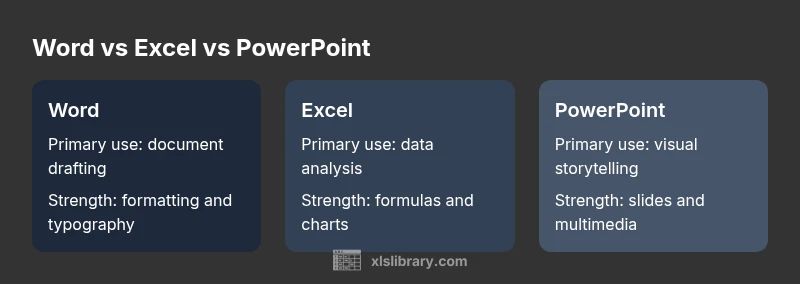
According to XLS Library, Word handles long-form text and formatting, Excel dominates data analysis and modeling, and PowerPoint shines in visual storytelling. The best choice depends on your goal—drafting documents, crunching numbers, or presenting insights. This quick comparison helps you pick the right tool for each task and avoid workarounds.
The Core Roles of Word, Excel, and PowerPoint
In the modern office, three applications stand out for different kinds of work: Word for narrative documents and structured formatting, Excel for numerical analysis and data modeling, and PowerPoint for visual storytelling and slide-based communication. The word vs excel vs powerpoint landscape reflects a division of labor: Word excels at long-form content with robust typography and style control, Excel handles datasets, formulas, and dashboards, and PowerPoint focuses on creating compelling, media-rich presentations. Because these tools live in the same ecosystem, they offer built-in ways to move content between apps, which can reduce rework and keep your messaging consistent across formats. As you plan a project, define the primary task first, then map subtasks to the tool that fits best. In practice, teams that align tasks to the strongest app spend less time cleaning up and more time delivering impact.
When to Choose Word over the Others
Word is the natural choice for documents that require narrative flow, precise formatting, and professional typography. If your deliverable is a policy brief, a proposal, or a multipage report with headings, footnotes, and a table of contents, Word provides reliable styles, automatic numbering, and a robust editing experience. When you need track changes for collaboration or to produce a polished manuscript, Word’s reviewing tools beat spreadsheet-oriented workflows. Word can embed simple charts or tables, but its sweet spot is text-first content with careful layout. In broader campaigns, teams often draft the narrative in Word and then hand off sections to Excel or PowerPoint as needed. The key is to maintain a consistent document structure and reuse templates that preserve branding and accessibility.
When to Choose Excel
Excel is designed for data-driven work: calculations, modeling, and scenario analysis. If your task involves numerical data, financial projections, or data-driven decision support, Excel’s formulas, conditional formatting, and charts are unmatched. Advanced users leverage functions like VLOOKUP/XLOOKUP, pivot tables, and data validation to organize and summarize large datasets. Excel also supports data integration from external sources and lightweight dashboards, making it a strong companion to Word and PowerPoint when you need to quantify and validate claims before presenting them. While Word handles text, and PowerPoint conveys messages, Excel supplies the numeric backbone that improves credibility and decision quality. Plan your data structure early to avoid major refactoring later.
When to Choose PowerPoint
PowerPoint specializes in turning ideas into visual narratives. If your goal is to persuade, teach, or inform an audience through slides, PowerPoint offers design ideas, Master Slides, and multimedia capabilities that bring text and data to life. Compared to Word and Excel, PowerPoint focuses on the pacing of information, slide transitions, and visual storytelling. The app supports embedded charts from Excel, which helps you present live data in an accessible, digestible format. For teams, PowerPoint is most effective when used to summarize complex analyses and present recommended actions with a clear call to action. Balance visuals with concise notes to keep the audience engaged.
Cross-Tool Workflows: When to Combine
Cross-tool workflows let you leverage the strengths of each app in a single project. For example, draft a report in Word, pull the supporting numbers from Excel, and craft a compelling narrative in PowerPoint for stakeholders. You can link Excel data into Word or PowerPoint, keeping numbers synchronized as data updates occur. When building dashboards or proposals, maintain a single source of truth by maintaining data in workbook files and using copy-paste as needed, avoiding manual re-entry. Establish naming conventions and templates to minimize confusion when content is exchanged between apps. This approach reduces version drift and improves consistency across your deliverables.
Interoperability and File Formats
Microsoft 365 provides strong interoperability between Word, Excel, and PowerPoint, enabling embedded objects, linked data, and shared templates. When exchanging files, use the native formats (.docx, .xlsx, .pptx) to preserve formatting and features. If you share across platforms or older software, consider exporting to PDF for stable viewing or using compatible features like tables, charts, and images to preserve clarity. Embedding charts from Excel into Word or PowerPoint preserves data integrity while allowing you to narrate findings with your own text. Be mindful of feature gaps when collaborating with users on older versions or non-Microsoft tools; where possible, maintain compatibility by sticking to core features.
Feature Comparison
| Feature | Word | Excel | PowerPoint |
|---|---|---|---|
| Primary Use | Document creation and editing | Data analysis and modeling | Presentations and storytelling |
| Data Handling | Text, formatting, layout | Numbers, formulas, charts | Slides, visuals, multimedia |
| Collaboration Workflow | Commenting, track changes | Co-authoring, shared workbooks | Slide comments and co-authoring |
| Learning Curve | Moderate (formatting) | Moderate to high (formulas) | Low to moderate (visuals) |
| Common File Extensions | .docx | .xlsx | .pptx |
Benefits
- Comprehensive toolkit across the three core office tasks
- Seamless integration within a single ecosystem for sharing and collaboration
- Extensive templates and community resources support rapid production
- Rich interoperability features reduce handoffs across apps
- Strong support across platforms (Windows, macOS, web) and devices
What's Bad
- Different interfaces require context switching between apps
- Licensing considerations for teams using the full suite
- Potential feature creep if you overbuild with all three tools
- Learning curves for advanced features in Excel and PowerPoint
- Dependence on consistent templates to maintain brand alignment
Word, Excel, and PowerPoint together form a complete workflow for most professional tasks
Each tool covers a distinct need: Word for narrative documents, Excel for data, and PowerPoint for presenting insights. When used in concert with thoughtful templates and cross-tool links, they deliver a streamlined, repeatable process that reduces rework and improves persuasiveness.
People Also Ask
What is the main difference between Word, Excel, and PowerPoint?
Word focuses on long-form text and formatting, Excel on data analysis and modeling, and PowerPoint on visual presentations. Each tool has strengths that align with different parts of a project.
Word handles drafting, Excel crunches numbers, PowerPoint tells the story with slides. Choose based on the task at hand.
Can I reuse content across all three apps easily?
Yes, you can copy and paste or link data between Word, Excel, and PowerPoint. For live updates, link Excel charts into Word or PowerPoint, and refresh when data changes.
You can link charts to keep data in sync across docs and slides.
What is the best workflow for a report that includes data visuals?
Draft the narrative in Word, build the data visuals in Excel, and summarize findings in PowerPoint for the release. Use linking to keep data synchronized and templates for consistency.
Draft, analyze, and present using the three apps in sequence.
Are there licensing considerations for teams using all three apps?
Office plans typically include all three apps; consider team size, collaboration needs, and platform preferences to choose the right plan.
Most teams benefit from a plan that covers Word, Excel, and PowerPoint together.
How can we collaborate effectively across the three tools?
Use OneDrive or SharePoint for centralized storage, enable co-authoring where available, and set clear permissions and version history.
Collaborate in the cloud so edits appear in real time.
Which tool is easiest to learn for beginners?
PowerPoint tends to be the easiest for beginners due to its visual focus, while Word is straightforward for basic tasks; Excel requires more practice for advanced features.
PowerPoint is usually the simplest to pick up, with Word following closely; Excel takes a bit more time to master.
The Essentials
- Start by mapping a task to the strongest tool
- Use cross-linking to keep data current across documents
- Maintain consistent branding with shared templates
- Leverage embedded Excel data in Word/PowerPoint for credibility
- Educate teams on basic cross-tool workflows to boost adoption