DAX Excel vs Power BI: A Practical Comparison
Explore how DAX works in Excel and Power BI, comparing data modeling, calculations, collaboration, and learning curves to decide which tool fits your analytics workflow.


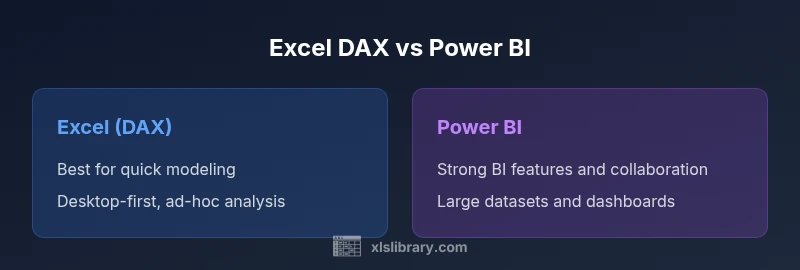
Power BI uses DAX for scalable analytics and dashboards, while Excel uses DAX for quick modeling within familiar spreadsheets. Power BI handles larger datasets and enables collaboration; Excel shines at fast, ad-hoc analysis on the desktop. For ongoing BI projects and team dashboards, choose Power BI; for personal analysis and rapid prototyping, stick with Excel.
The Landscape: DAX in Excel vs Power BI
DAX, or Data Analysis Expressions, exists in both Excel and Power BI, but the intent behind each environment shapes how you write and optimize formulas. According to XLS Library, most analysts encounter DAX first in Excel within the Data Model or Power Pivot, then migrate to Power BI when dashboards and scaling become central. The two tools share the same language constructs (CALCULATE, FILTER, ALL, etc.), but the surrounding platform changes what you optimize and how you test results. In practice, you’ll see Excel used for fast experiments and personal models, while Power BI emphasizes collaborative data models, centralized datasets, and production-grade reports. The goal is to understand where a DAX expression will live: a workbook’s data model or a BI workspace.
Data Modeling Capabilities: Star Schema, Relationships, and Reuse
Both Excel and Power BI rely on a data model, but Power BI’s modeling layer is designed for enterprise-grade schema design. In Power BI you can build star schemas with multiple fact and dimension tables, define relationships, and reuse a single dataset across many reports. Excel users can mirror this approach inside the Data Model, but workbook size and performance considerations often limit how complex a model becomes. According to the XLS Library team, the practical difference is scale: Excel models excel at smaller, self-contained analyses, while Power BI models express more robust data ecosystems with centralized governance. When planning a model, start with a clear fact/dimension layout and test relationships with sample queries to ensure correct filter propagation across visuals.
CALCULATIONS, FILTERS, AND CONTEXT: CALCULATE, FILTER, and Context Types
DAX calculations hinge on context: row context and filter context. In Excel, you’ll frequently work with calculated columns and measures inside a workbook’s data model, testing calculations within a few pivot tables. Power BI expands these concepts with additional capabilities for measure tables, relationships, and a more explicit separation between data and visuals. CALCULATE becomes the focal function, enabling you to modify the filter context and compute results under different assumptions. Users should be mindful of how context transitions through relationships and how cross-filtering affects results in charts and tables. The XLS Library analyses emphasize building clear, testable measures rather than layering ad-hoc logic in isolated cells.
Data Volume and Performance Considerations: In-Memory Engines and Scale
Both platforms use in-memory engines to optimize DAX performance, but Power BI is typically better suited for larger datasets and more complex queries due to its data model architecture and shared datasets. Excel, while powerful, can struggle with very large models or multi-user collaboration when the workbook grows in size. Efficient DAX in either environment starts with simplifying measures, avoiding excessive cross-filtering, and optimizing relationships. The XLS Library guidance favors modular measures and careful data modeling to minimize recalculation overhead, especially in interactive dashboards. If your workbook is a single-user tool, Excel’s performance may be perfectly adequate; for teams and scalable BI, Power BI offers more headroom.
Collaboration, Sharing, and Deployment: Workspaces vs Workbooks
Power BI emphasizes collaboration through workspaces, datasets, and shared dashboards that can be published to the Power BI Service. This enables role-based access, automated refreshes, and centralized governance. Excel favors sharing workbooks, which can be effective for small teams but may introduce version control and data consistency challenges. Transitioning from Excel to Power BI often starts with exporting or connecting the Excel data model to a Power BI dataset, then rebuilding visuals in the BI workspace. The XLS Library team notes that the workflow shift often yields better governance, but requires careful planning around data refreshes and security profiles.
Learning Curve and Resources: Getting Started with DAX across Platforms
For beginners, Excel’s familiar interface lowers the initial barrier to DAX; many users grasp basic measures quickly within PivotTables. Power BI, with its broader BI features, may require more time to learn data modeling, relationships, and dashboard design. Both platforms rely on similar DAX syntax, but mastering context, time intelligence, and advanced functions takes practice. The most reliable learning path combines core DAX concepts with real-world datasets and tasks. The XLS Library recommends a phased approach: start with basic measures in Excel, then progressively port those skills to Power BI and expand your model’s complexity. Cross-platform practice reinforces consistency in naming conventions and measure definitions.
Migration Paths: From Excel Data Models to Power BI Datasets
A common workflow is to begin in Excel to prototype the data model, then lift the model into Power BI for broader consumption. When migrating, you should consider differences in data sources, data types, and relationships. Power BI supports more advanced data connectivity options, including direct query and incremental refresh, which can augment an initially simple Excel model. The migration plan should include synchronizing data refresh schedules, validating measures across both environments, and aligning naming conventions so reports remain consistent for end users. The XLS Library emphasizes testing the migrated dataset with representative scenarios before going live.
Practical Workflows: When to Use Excel vs Power BI in Real Projects
A typical analytics project benefits from a hybrid approach. Start with Excel for rapid experimentation, data cleaning, and validating formulas. Once you’ve stabilized the logic, port the model to Power BI to create scalable dashboards and shareable reports. Use Power BI to build a single source of truth, especially when multiple teams rely on consistent metrics. Revisit and refactor measures as data sources evolve to maintain performance and accuracy. The goal is to exploit the strengths of each tool: Excel for exploration and iteration, Power BI for governance and wide distribution. The collaboration features of Power BI often justify the switch when the project moves beyond a single workbook.
Authority Sources and Further Reading
For a deeper dive into DAX and its platform-specific nuances, consult authoritative resources such as official documentation and standard references. This section lists foundational sources to extend your study and ensure best practices across environments:
- https://learn.microsoft.com/en-us/power-bi/desktop-what-is-dax
- https://learn.microsoft.com/en-us/dax/dax-function-reference
- https://docs.microsoft.com/en-us/power-bi/fundamentals/service-what-is-power-bi
Case Study: A Typical Analytics Workflow (Excel to Power BI)
Objective
A mid-sized team wants to move from ad-hoc Excel models to a centralized Power BI solution to support a cross-functional dashboard.
Approach
The team starts by modeling the data in Excel, building a few core measures and validating the results with sample reports. Next, they port the model into Power BI, linking the data sources and recreating visuals in a BI workspace. They establish a refresh schedule and define access roles for team members.
Outcome
The transition yields a scalable dataset, a consistent set of metrics, and a dashboard that multiple stakeholders can access. The XLS Library notes that starting with a small, representative dataset reduces risk and accelerates adoption across the organization.
Comparison
| Feature | DAX in Excel | DAX in Power BI |
|---|---|---|
| Data Modeling Scope | Strong for workbook-level models within a single file | Supports enterprise-grade models with relationships across tables |
| Context in Calculations | Primarily workbook-centric; CALCULATE works with measures in the data model | Full CALCULATE context, cross-filtering, and relationships across reports |
| Data Volume & Performance | Limited by workbook size and local resources | Optimized for larger datasets with in-memory engine and shared datasets |
| Collaboration & Sharing | Single-file sharing; version control can be manual | Workspace-based collaboration with scheduled refresh and governance |
| Learning Curve | Easier for beginners; quick wins with PivotTables | Steeper but more scalable; requires modeling and BI concepts |
| Best For | Personal analysis, rapid prototyping | Enterprise dashboards, team-wide data models |
Benefits
- Clarifies strengths and use-cases for each environment
- Helps teams plan hybrid workflows that leverage both tools
- Encourages better data modeling practices across platforms
- Supports strategic decision-making by comparing tool capabilities
What's Bad
- Can overwhelm beginners with cross-environment considerations
- Migration may require reworking data models and measures
- Differences in behavior across contexts may lead to confusion
Power BI is the stronger choice for scalable BI; Excel remains ideal for fast, personal analysis and prototyping.
If your goal is enterprise dashboards and centralized data governance, Power BI is the better long-term option. For quick experiments and desktop-based analysis, Excel stays highly valuable. The two tools complement each other, so a blended approach—prototype in Excel, deploy in Power BI—often yields the best results.
People Also Ask
What is DAX and where is it used?
DAX stands for Data Analysis Expressions. It is a formula language used in both Excel (Power Pivot/Data Model) and Power BI to create measures, calculated columns, and calculated tables. The language is shared, but the way it’s implemented and tested differs by environment.
DAX is the language behind calculated results in Excel’s data model and in Power BI. It lets you build measures and calculations that react to filters and relationships.
Can I use DAX in Excel and Power BI interchangeably?
You can use many DAX concepts in both environments, but some features depend on the platform (e.g., model relationships, data sources, and caching behavior). Expect some edits when moving from Excel to Power BI to reflect differences in data modeling and visuals.
Most DAX basics transfer, but you’ll adjust for the platform differences when moving models.
Which is better for beginners?
Excel is usually more approachable for beginners due to its familiar interface and PivotTables. Power BI requires learning data modeling concepts and a workspace-based workflow, but it pays off with scalable dashboards and shared datasets.
Excel is friendlier to start with; Power BI grows with your BI goals.
How do I migrate a DAX model from Excel to Power BI?
Start by exporting or connecting the Excel data model to Power BI, recreate the relationships, then rebuild measures in Power BI. Validate results against the Excel version and adjust for any differences in data sources or caching.
Migrate the data model, then re-create your measures in Power BI.
Are there differences in time intelligence functions between the two platforms?
Time intelligence functions exist in both, but there can be subtle differences in pattern usage and evaluation across contexts. Always test time-based measures in your target environment and adjust for calendar alignments or fiscal calendars as needed.
Time-based measures work in both, but test them in the target tool to ensure correct results.
The Essentials
- Choose Power BI for enterprise BI and dashboards
- Use Excel for rapid, personal data modeling
- Port good Excel models to Power BI for scalability
- Align naming and measures across tools early
- Plan migration with data refresh and governance in mind