Why is R Better Than Excel? A Clear Data Analysis Comparison
Explore why is R better than Excel for data analysis. This objective guide explains when to use R, where Excel shines, and how to transition with practical steps and evidence-based criteria.


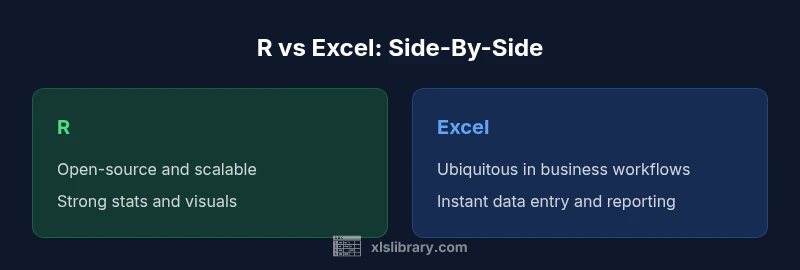
For many data analysis tasks, R offers superior reproducibility, scalability, and statistical capabilities compared to Excel, making it a better choice for complex analyses and larger datasets. While Excel remains convenient for quick data entry and simple reporting, R excels in scripting, automation, and advanced visualization. In short, for ongoing projects that require repeatable workflows, R is often the better option.
Why is R better than Excel? Core idea
In exploring why is r better than excel, we weigh reproducibility, scripting freedom, scalability, and community support that power data analysis beyond spreadsheets. According to XLS Library, R provides a programmable interface that enables analysts to define every step of their workflow, from data import to model validation, in plain text. This enables teams to audit, reproduce, and extend analyses over time, a capability Excel struggles to match when projects outgrow manual workbook procedures. Additionally, R’s ecosystem—comprising packages for statistics, graphics, and reporting—allows analysts to tailor tools to specific problems, rather than adapting to the constraints of a general spreadsheet. The result is a more scalable, auditable, and collaborative approach to data work. For beginners, the initial hurdle is real, but the payoff grows with project complexity and team size.
This section sets the stage for a practical, evidence-based comparison that moves beyond intuition and focuses on data-driven decision criteria. The rest of the article will unpack concrete scenarios, technical considerations, and transition steps that help determine when to favor R over Excel and how to bridge skills and workflows across teams.
Practical Scenarios Where R Shines
R shines in contexts that demand statistical rigor, reproducible research, and automation. When you are building predictive models, conducting custom simulations, or reproducing results across multiple collaborators, R’s scripting environment, version control-friendly notebooks, and extensive package ecosystem make it easier to maintain a traceable, sharable workflow. For large datasets, R packages like data.table and dplyr enable fast, memory-efficient manipulation that far surpasses what is practical in a single Excel workbook. Even in environments where Excel is a starting point, R can complement workflows by handling heavy lifting in the background and feeding cleaned results back into Excel for stakeholder-facing dashboards. A typical scenario is combining external data sources, applying statistical models, and generating publication-ready plots and reports—all with a repeatable script.
However, Excel remains highly effective for rapid data capture, ad-hoc analysis, and light-weight reporting. The choice between the two tools often depends on the task duration, data size, and collaboration needs. If you require structured automation, robust statistics, and scalable visualization, R is usually the better option. If your primary goal is quick data entry and straightforward charts for a one-off decision, Excel may still suffice. The key is to map tasks to tool strengths and plan a phased adoption if appropriate.
Data Handling and Size: How R Scales Compared to Excel
Data handling is a core differentiator between R and Excel. Excel operates primarily as a workbook with a finite number of rows and columns per sheet, and it becomes cumbersome or fragile as data volume grows. R, by contrast, treats data as objects in memory or on disk, enabling efficient operations on large datasets, streaming data, and seamless integration with databases. With data frames, tibbles, and specialized data structures, analysts can perform joins, aggregations, and transformations at scale, without manual copy-paste steps. R’s memory management, along with packages for out-of-core processing, allows analyses that would be impractical in spreadsheet form. This capacity matters when handling time-series data, genomic data, or survey data at scale.
Excel’s simplicity is a strength for small datasets and quick checks, but R’s data handling architecture is better suited to rigorous analyses, reproducibility, and ongoing data pipelines. The practical implication is that teams evaluating why is r better than excel should consider data size, frequency of updates, and the need for automated pipelines. If data volumes are modest and analysts value familiarity, Excel can remain useful. If datasets grow or become more complex, transitioning processing to R yields substantial long-term benefits.
Reproducibility, Workflows, and Version Control
Reproducibility sits at the heart of why is r better than excel for many professional environments. In R, you capture data manipulation, modeling, and visualization in scripts or notebooks that can be version-controlled with Git. This enables teammates to review, reproduce, and modify analyses without re-creating steps from scratch. In Excel, reproducibility often hinges on formulas across sheets, manual steps, and hard-to-track dependencies on cell addresses. While macros can automate some tasks, they can quickly become brittle across versions or different workbooks. R encourages modular workflows: import, clean, transform, model, visualize, and report as discrete steps that can be rerun with a single command. This reduces the risk of human error and improves auditability, which is especially important for regulatory or academic contexts.
Adopting R often means embracing an environment where code reviews, unit tests, and documented dependencies become standard practice. Teams that standardize on scripts, add-on packages, and reproducible reporting templates tend to encounter fewer handoffs and fewer surprises when analyses are revisited months later. While Excel can support collaborative work through shared workbooks and cloud-based templates, maintaining rigorous version history and reproducibility is typically easier and more scalable in R.
Visualization and Reporting: Building Insights with R
Visualization in R is a differentiator when choosing between R and Excel for data-driven storytelling. With ggplot2 and the broader tidyverse, analysts can craft highly customized, publication-quality graphics that adapt to changing data. The ability to layer aesthetics, facets, and statistical summaries yields visuals that communicate complex patterns clearly. In Excel, charts and pivot tables are powerful for quick, interactive exploration, but they can become unwieldy when visualizations require advanced customization or consistent styling across multiple reports. R also excels in reporting workflows: you can render analyses directly into HTML, PDF, or slide decks via R Markdown, which streamlines the path from data to narrative. This capability is particularly valuable for teams that need to share reproducible analyses with minimal manual formatting.
Nonetheless, Excel’s native charts can be sufficient for routine dashboards and executive summaries. The best approach often involves using R for the heavy lifting and then exporting results to Excel for stakeholder-facing reporting, a pattern that combines the strengths of both tools. As you consider the “why is r better than excel” question, evaluate not just what you can visualize, but how easily you can keep visuals aligned with updated data across teams.
Learning Curve, Community, and Ecosystem
One common concern when evaluating why is r better than excel is the learning curve. R requires learning a programming mindset, logical data manipulation, and syntax-specific functions. The timeline can feel steep for newcomers, but the payoff is a long-term ability to handle diverse data tasks with flexibility. The R community is large, active, and supportive, with countless tutorials, packages, and forums that shorten the learning path. On the other hand, Excel offers a gentle entry point and immediate, tangible results, which makes it attractive for beginners and business users who are not ready to code. The ecosystem around R—CRAN, Bioconductor, and community-driven projects—continues to expand, delivering tools for data cleaning, visualization, machine learning, and reporting. Expect ongoing updates and new packages that address emerging analysis needs.
If your organization invests in training and commits to a gradual transition, learning R becomes a scalable asset. For teams under tight deadlines or with limited technical support, starting with R in a controlled pilot project can be a pragmatic approach. The learning path should emphasize not only syntax, but also data workflow design, version control, and reproducible reporting practices that separate strong data science from ad-hoc analysis.
Integration with Business Workflows and Cost Considerations
Integrating R into business workflows often involves connecting to databases, scheduling automated jobs, and integrating with existing BI tools. R provides interfaces to SQL databases, APIs, and data warehouses, enabling automated ETL and analytics pipelines. In contrast, Excel’s strength lies in its familiarity and deep integration with office workflows, which many organizations depend on for daily operations. The cost considerations differ as well: Excel requires a license (often bundled with Office 365), while R is free and open-source. Organizations should assess total cost of ownership, including license costs, training time, and the potential productivity gains from automation. If teams require turnkey reporting within a familiar interface and do not need extensive programmatic analyses, Excel may be sufficient. For teams pursuing scalable analytics, governance, and long-term cost efficiency, R’s open ecosystem can be a strong strategic asset.
A practical approach is to design data pipelines that perform heavy analysis in R, then export summarized results to Excel or a BI tool for stakeholder dashboards. This hybrid approach often yields the best of both worlds: accuracy and depth from R, plus the accessibility of Excel for decision-makers.
Transition Roadmap: From Excel to R in 90 Days
A structured transition plan helps answer the question of how to move from Excel to R in a practical and achievable way. Start by mapping your most common tasks in Excel (data entry, cleaning, basic calculations, and basic charts) to equivalent R workflows. Begin with guided tutorials on data import (readxl, tidyverse), cleaning (dplyr, tidyr), and simple visualization (ggplot2). By the end of week four, assemble a small project that reproduces a representative Excel workflow entirely in R, including data import, cleaning, modeling, and a reproducible report via R Markdown.
Gradually increase complexity: add more datasets, more sophisticated models, and automated reporting. Leverage notebooks (R Markdown, Quarto) to share analyses with teammates and maintain a single source of truth. Encourage version control from day one, so every change to data processing steps is tracked. Finally, identify tasks that will remain in Excel—like rapid data entry for front-end users—and design interfaces that feed data into R pipelines rather than re-creating analyses from scratch.
Common Misconceptions About R in Business
Several misconceptions can hinder a fair assessment of R. A common myth is that R is only for statisticians or academia. In reality, R is suitable for a broad range of business analytics tasks, from data cleaning to advanced machine learning, and it supports practitioners at all skill levels through approachable packages and comprehensive documentation. Another misconception is that R cannot integrate with enterprise BI tools; in practice, R interfaces with databases, dashboards, and reporting platforms, enabling scalable analytics pipelines. Finally, some assume that Excel is always the simplest choice for small datasets; however, when recurring analyses require scripting, automation, and reproducibility, R’s advantages become apparent even for modest datasets.
Addressing these myths involves hands-on practice, pilot projects, and clear metrics showing time saved, improved reproducibility, and faster iteration cycles. The goal is to move from perception to practical evaluation, using concrete examples from your organization to guide tool selection decisions.
Final Guidelines: How to Choose Your Tool
Choosing between R and Excel should be guided by task complexity, data size, and collaboration needs. For exploratory data work, prototyping, and reproducible, automated analyses, R is typically the better option. For quick data capture, simple calculations, and stakeholder-facing reports with minimal setup, Excel remains a valuable tool. The recommended approach is a pragmatic blend: use R for the heavy analysis and automation, then leverage Excel or BI tools for presenting results to stakeholders. As you justify the choice, emphasize goals like reproducibility, scalability, and speed to insight. This balanced view helps teams decide when to lean on R, when to rely on Excel, and how to structure a hybrid workflow that maximizes both efficiency and accuracy.
Comparison
| Feature | R | Excel |
|---|---|---|
| Data Handling (size and types) | Strong scalability with data frames and efficient memory management | Well-suited for small to moderate datasets; sheet-based limits apply |
| Statistical Capabilities | Extensive modeling packages for regression, time-series, and advanced analyses | Solid built-in stats with convenient charts; limited modeling beyond basics |
| Data Visualization | ggplot2 and advanced customization across complex datasets | Standard charts and pivot charts; quicker for simple visuals |
| Automation & Reproducibility | Scripts, notebooks, Git-friendly workflows | Manual steps and macros; reproducibility depends on process discipline |
| Learning Curve | Steeper at start but scalable for large projects | Lower barrier for basic tasks; quick results for beginners |
| Cost & Licensing | Open-source and community-driven | License-based; cost depends on organizational setup |
| Collaboration & Sharing | Code-driven workflows with clear provenance | Workbook-based sharing; potential version control challenges |
Benefits
- Reproducible, script-driven workflows
- Excellent for large datasets and complex analyses
- Open-source with a vast ecosystem
- Powerful visualization and reporting capabilities
- Strong community support and extensibility
What's Bad
- Steeper learning curve for beginners
- Less intuitive for ad-hoc, quick analyses
- Requires setup of a coding environment
- Collaboration can be harder without tooling for version control
R generally offers a stronger foundation for scalable, reproducible data analysis, while Excel remains valuable for quick, ad-hoc tasks and familiar reporting.
If your goal is reproducibility, advanced analytics, and scalable workflows, adopt R as the core analytics engine. Use Excel for lightweight, day-to-day tasks and quick reporting where appropriate. The best path often combines both tools strategically.
People Also Ask
When should I choose R over Excel for a project?
Choose R when you need reproducible analyses, automation, handling large datasets, or advanced statistical modeling. If your task is quick data entry or a simple chart, Excel can be sufficient.
Choose R for reproducible analyses and complex modeling; use Excel for quick data entry and simple charts.
Can I transition from Excel to R gradually?
Yes. Start by replicating small Excel tasks in R, then progressively add more datasets and models. Use R Markdown to combine code, narrative, and outputs for a smooth handover.
You can start small in R and scale up; capture steps in R Markdown for smooth handoffs.
Is R difficult for beginners?
R has a learning curve, but many resources exist. Begin with basics in data import and cleaning, then gradually tackle modeling and visualization. Practice with small projects to build confidence.
R has a learning curve, but you’ll get there with steady practice and tutorials.
Can R read and write Excel files?
Yes. R can read and write Excel files via packages like readxl and writexl, making it easy to bridge data from Excel into R and back as needed.
R can read and write Excel files to connect your two worlds.
What about cost and setup for R?
R is free and open-source, with widespread community support. You’ll need a basic setup (R, RStudio) and some initial training, but ongoing costs are low compared to licensed software.
R is free; setup is simple with RStudio and online guides.
Is R suitable for data visualization beyond Excel charts?
Absolutely. R offers customizable, publication-quality visuals with ggplot2 and related packages that surpass Excel charts in flexibility and depth.
Yes, R lets you create deeper, customizable visuals.
The Essentials
- Prioritize reproducibility and automation with R for scalable analytics
- Reserve Excel for quick data entry and lightweight reporting
- Adopt a hybrid workflow: heavy analysis in R, dashboards in Excel/BI tools
- Invest in training and version control to maximize R’s benefits
- Use R’s ecosystem to future-proof analytics pipelines